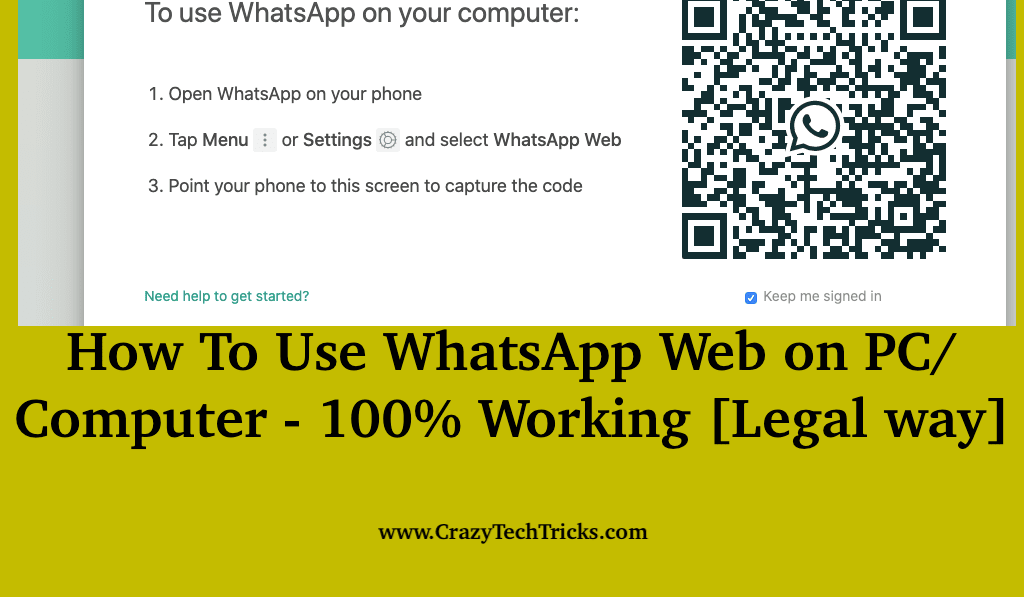
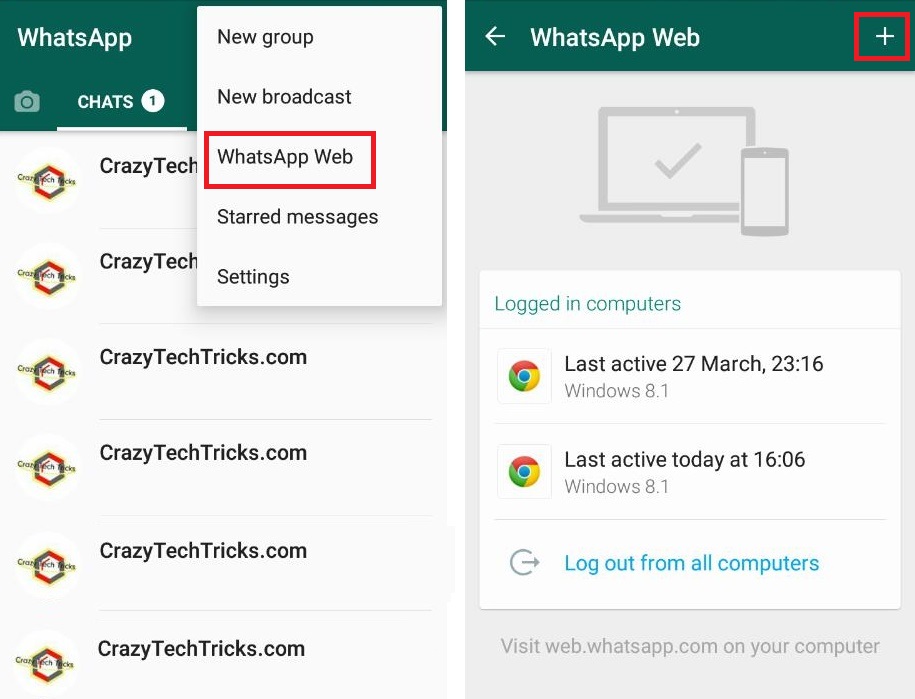
Hello friends, Today I will tell you a method on How to use WhatsApp web on PC. Users can even download WhatsApp for desktop on their Windows 7, 8.1, and 10. I will share the legal method and software to download WhatsApp for PC. You can use WhatsApp on both Android/iPhone and PC/Laptop.
WhatsApp can be used on both Android and PC/Laptops by doing some simple and easy steps. WhatsApp Web is an official feature offered by WhatsApp Inc, which is now owned by Facebook Company. WhatsApp web is an extension that is based on your Android/iPhone and your PC/Computer. I am taking only the two devices, which are Android and Computer. Don’t worry WhatsApp web is available for Android, iPhone, Windows Phone 8.0 and 8.1, Nokia S60, Nokia S40 EVO, BlackBerry and BlackBerry 10 smartphones as well as it’s also available for Mac OS and Windows OS both.
Read more: How to Setup WhatsApp Fingerprint Lock on Your Android Phone
The messages you receive and send will be synchronized between your phone and your computer. Of course, by using WhatsApp web you can do both send messages and receive messages. Moreover, the messages will be displayed on both of your devices. You don’t have to create another WhatsApp account to use WhatsApp web in your computer you can use the same existing account from your phone and your computer.
Read more: How to Block WhatsApp Group From Adding Me
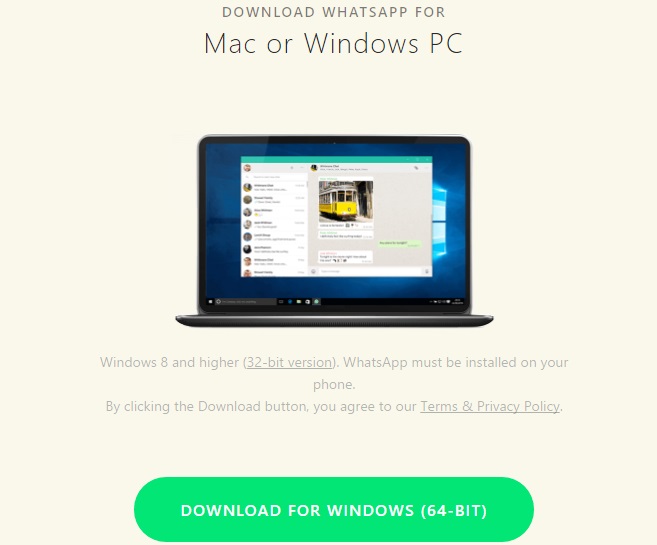
This is an official software offered by WhatsApp Inc for their desktop users. You can download and install this WhatsApp software for free. The features are same as like WhatsApp web. All messages will be displayed on both of your devices. In fact, you don’t have to pay a single penny to use WhatsApp for the desktop.
Read more: How to Send Large Video Files on WhatsApp
Maybe you would like to use WhatsApp for the desktop instead of using the WhatsApp web. But, seriously, the WhatsApp software is more secure than the WhatsApp Web website. Given both of them a try and ensure yourself which one you would like to get.
Read more: How to Add Contacts on WhatsApp
You can download WhatsApp for PC. This the legal method to install WhatsApp for desktop. Users can also use Whatsapp Web on PC without downloading this software. So, how about you? Do you use WhatsApp on smartphones more as compare to PC? Do make a comment below and don’t forget to share this article with your friends.
This post was last modified on May 21, 2020 03:02
Learn how to increase virtual memory in Windows 11, which in turn will improve system…
Learn how to remove OneDrive from File Explorer in Windows 11 with account unlinking, Group…
Learn how to find largest files on Windows 11 with File Explorer, Storage Settings, and…
Learn how to turn off OneDrive on Windows 11 by going to sync settings, unlinking…
Learn how to insert calendar in PowerPoint with templates, tables, or Excel. Present professional and…
Learn how to create templates in Outlook, which in turn will save you time, improve…
This website uses cookies.