Hello friends, Today I will tell you best methods to fix Windows 10 Search not working issue. People can resolve the issue of Windows 10 Search bar from their PC/Windows. You can completely fix your Windows 10 Search Not working issue.
Microsoft Windows 10 is the latest and most advanced Windows by Microsoft. It has a lot of cool features and supports several new functions. But more the feature more the problem arises. Windows 10 has a lot of issues like Taskbar, WiFi, Start Menu and much more. We have earlier discussed on almost every issue of Windows 10. And today will share a trick to fix Windows 10 Search not working issue.
Users are not able to search in their Windows 10 due to this issue. I will share several methods which will help to fix Windows 10 Search not working issue. These methods are very easy and simple to follow. I have shared all the details regarding Windows 10 Search not working problem.
Read more: How to Fix Windows 10 WiFi Issues – Best Methods
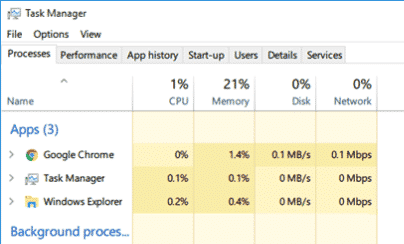
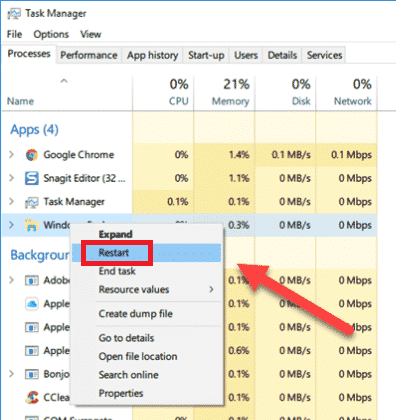
You must be aware of the Task Manager. Users can fix this issue through theirTaskbar. I will tell you easy steps to fix Windows 10 search issue.
Users can follow the same method above and instead of selecting Restart, click on End Task. When the task is End then it opens automatically after few seconds. If it doesn’t open automatically then press Ctrl+ Shift+ Delete and click on Run new Task. A popup will appear and enter explorer.exe and click on ok. Now it will start working again.
Read more: How to FIX Windows 10 Start Menu Missing Issue – 3 Best Methods
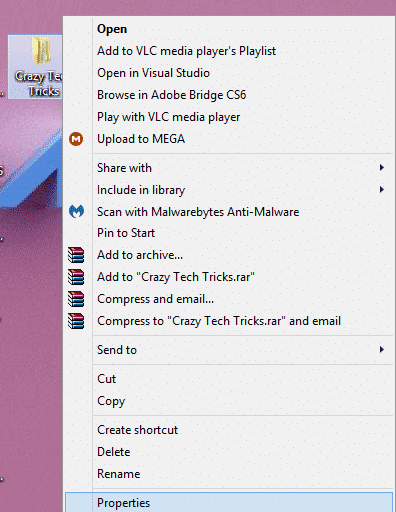
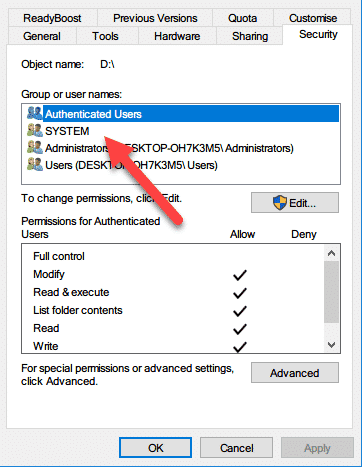
Your problem should be easily solved by following any of the methods above. But if System Administrator has not provided the permission or may be some issue in Administrator setting. Then use this method to fix windows 10 search not working issue.
These are the best method to Fix Windows 10 search Not working issue. Users can use any of the following method desired upon on their ease and accessibility. If you know any other easy method regarding Windows 10 search issue. Then, do make a comment below and don’t forget to share this article with your friends.
This post was last modified on February 8, 2022 00:12
Learn how to increase virtual memory in Windows 11, which in turn will improve system…
Learn how to remove OneDrive from File Explorer in Windows 11 with account unlinking, Group…
Learn how to find largest files on Windows 11 with File Explorer, Storage Settings, and…
Learn how to turn off OneDrive on Windows 11 by going to sync settings, unlinking…
Learn how to insert calendar in PowerPoint with templates, tables, or Excel. Present professional and…
Learn how to create templates in Outlook, which in turn will save you time, improve…
This website uses cookies.