Compress large files to smaller size. You can compress any kind of data or folder and compress. Files like Movies, Games and other kinds of big GB files can be compressed to MB. This software will compress your files at highest ultra mode.
Files like Gaming, Software, or especially movies consume the most size of your Hard Disk. These files take a large chunk of space on your Hard Disk. Several kinds of software are available on the internet to reduce the size of a file or folder. But these Softwares don’t reduce the file highly. They reduce the file size to very less extent. But today I will share a Software which can compress large files to very less size.
Read more: How to Recover Deleted Files from PC
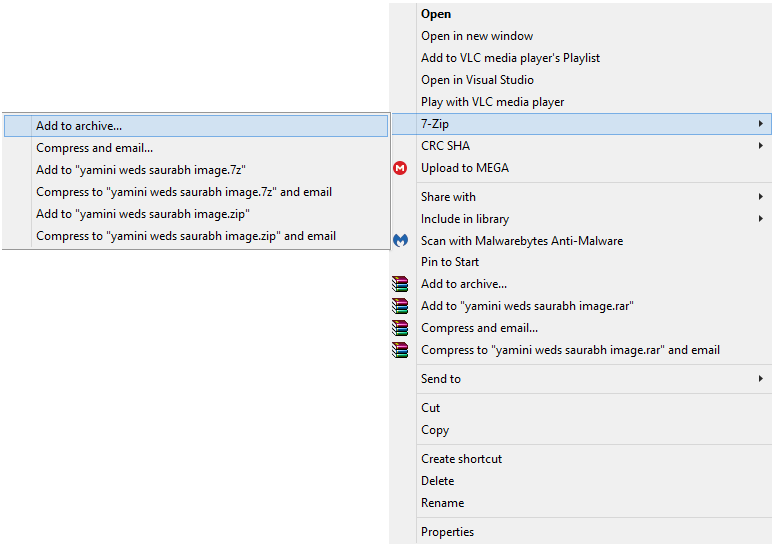
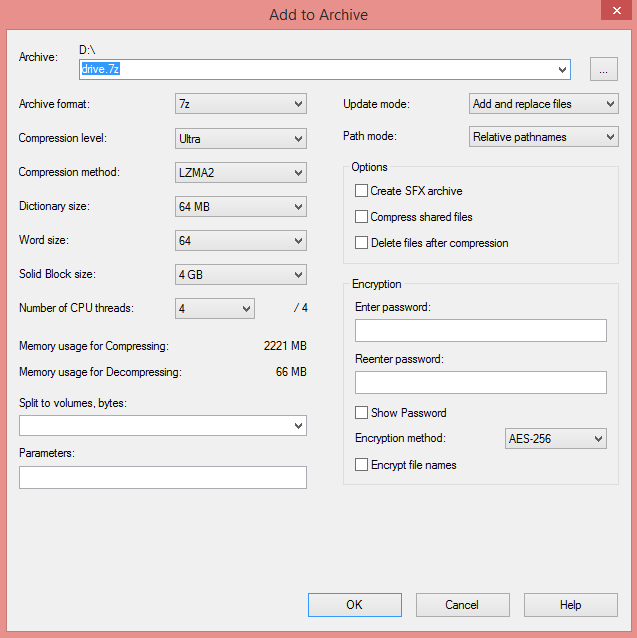
There are several kinds of software to compress large files to smaller sizes. But 7Zip is one of the fastest-growing software to compress the large files highly. It can compress the file 100 times less from its original size. Follow all the steps below to compress large files to a smaller size.
That’s it! Your selected file or folder is highly compressed. You can even see the size of the file after the process ends. It makes sure your PC/laptops bit slow while doing the compress. So, make sure you are not using your PC while it compresses large files.
This is the best methods to compress the large files to smaller sizes. There are other alternatives like WinRAR, etc present on the internet. You can even use the most used WinRAR to compress the files or folder. But to highly compress your files or folder use 7 Zip. It one of the most advanced compression tool to compress files.
This post was last modified on September 14, 2020 22:59
Learn how to increase virtual memory in Windows 11, which in turn will improve system…
Learn how to remove OneDrive from File Explorer in Windows 11 with account unlinking, Group…
Learn how to find largest files on Windows 11 with File Explorer, Storage Settings, and…
Learn how to turn off OneDrive on Windows 11 by going to sync settings, unlinking…
Learn how to insert calendar in PowerPoint with templates, tables, or Excel. Present professional and…
Learn how to create templates in Outlook, which in turn will save you time, improve…
This website uses cookies.
View Comments
It's very helpful and nice
can the file then be used in its compressed size? or you need to open it, at which point it reverts to full size?
You need to again revert to full size.
Why it didn't work
It just reduced 4MB in a 200 MB file
hey are you sure it increases the size lol? I will suggest you to check again.
200MB was reduced by 4MB
great :)
Thanks Bro My 9GB file Compressed into 3.9 GB, this is very helpul trick
Happy to help ;)