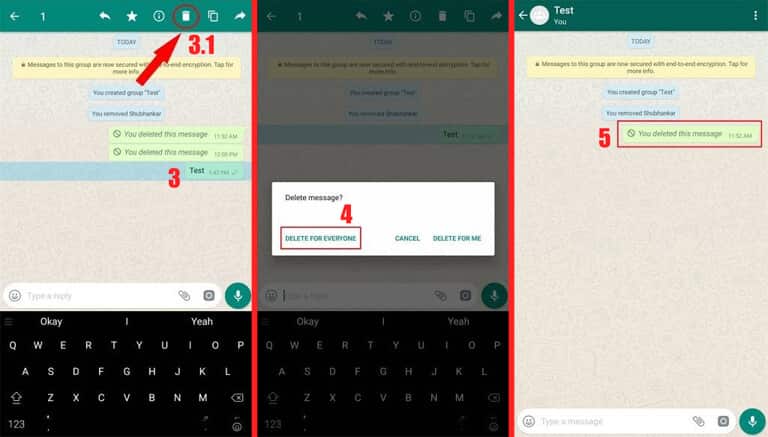
You can recall WhatsApp messages on Android or iPhone using this method. It is working, and the official way is given by WhatsApp to recall WhatsApp text messages, Video, or audio. You can recall any message sent from your side to anyone. Users can use the Recall button to remove text message before the receiver see. It is one of the best methods to recall your sent message on WhatsApp.
Mostly, it happens to us that we accidentally made a mistake by sending a message on WhatsApp which we do not want to send. Though, we can not recall WhatsApp message till now. But, what if I say to you that you can quickly recall WhatsApp message? You are amazed, right? Well, in this article, I am going to explain the full step by step guide which will help you to recall the WhatsApp message. I know that you have never wondered, That you can recall messages on WhatsApp which you have sent by mistake. Well, without wasting your time in the introduction, I would like to start the article for further knowledge. Let us go through the article.
Read more: How to Share Facebook Post on WhatsApp
WhatsApp is the second most known and used social networking platform where we can share images, videos, text, gifs, and much more. However, till now, WhatsApp did not have the recall messages feature. Well, now WhatsApp has taken a big step in making its conversation and users more comfortable by providing this feature to everyone. WhatsApp has presented the recall feature to delete text messages, photos, videos, gifs, etc. which you have sent by mistake to any of your recipients.
Read more: How to Use WhatsApp Video Calling
Finally, you have not got a fantastic feature to delete your wrongly sent messages or media on WhatsApp, which you use regularly. Most of the users were never expected this feature from WhatsApp. But, fortunately, this feature is available on WhatsApp. Any Whatsapp user can recall the WhatsApp message from his/her chat page. Of course, not only for you but also for the person who is receiving the message, both of the people will not be able to read this message, which you have deleted using the WhatsApp feature. Thus, this is the brand new feature to recall a WhatsApp message.
Read more: Top 10 WhatsApp Tips
We are going to learn the easy way to recall the WhatsApp message. However, you can recall WhatsApp message, whether its individual or a group of people. This recall feature of WhatsApp will work in both cases. So, if you have sent a wrong message to someone, then don’t worry use below discussed the method and learned the way to recall WhatsApp message. It’s straightforward, and also, you can use this feature while you are chatting with someone. Hence, let’s go below and check it out.
That’s it. You are done. This was the most comfortable way which you can use to recall the WhatsApp message.
Read more: How to Send GIF on WhatsApp
In this manner, we can delete or recall WhatsApp message without using any Android app. You can use this feature on Android or iPhone both smartphones. The only thing which you must remember is that you and your recipient should have the latest version of WhatsApp. Otherwise, this feature will not work for you as well as for your opponent both. If you loved this article, then do share this article with your friends also so that they can even get to know the best and fantastic way to recall WhatsApp message.
This post was last modified on November 27, 2019 15:12
Learn how to increase virtual memory in Windows 11, which in turn will improve system…
Learn how to remove OneDrive from File Explorer in Windows 11 with account unlinking, Group…
Learn how to find largest files on Windows 11 with File Explorer, Storage Settings, and…
Learn how to turn off OneDrive on Windows 11 by going to sync settings, unlinking…
Learn how to insert calendar in PowerPoint with templates, tables, or Excel. Present professional and…
Learn how to create templates in Outlook, which in turn will save you time, improve…
This website uses cookies.