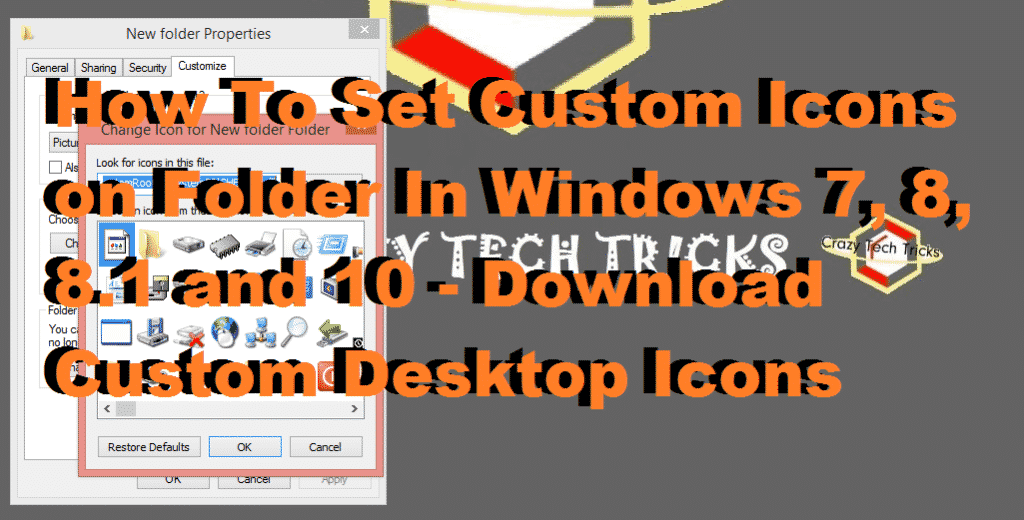
Hello friends, Today I will tell you a method to customize your folder icon. You can set custom icons on the folder. You can even add a picture icon to your folder. Follow the way and customize your folder in PC/Laptops. I will also share a method do download unlimited custom desktop icons.
Bored from the given folder icon? Want to customize your folder icon in windows computer? If yes, then follow steps & learn how to do this. You don’t need to download any software. Follow the simple steps listed below and set custom icons on a folder.
Read more: Change Facebook Name Before 60 Days – Easy Method
That’s it; you are done. Now, you’ll see various icons are available you can use them to set a custom icon, or you can browse to set your favorite image from your gallery.
Read more: Download WhatsApp Plus Latest apk For Android or iPhone 2017 [Without Root & Jailbreak]
If you want any more icons for your folder. Then, You can visit website Icon Archive [LINK] and download your favorite custom desktop icons.You can quickly set your desired custom icon by the following step. Just click on browse and select your desired custom desktop icons.
Read more: How to Hide Drive in Windows 8.1, 8, 10 and 7 – [100% Working]
So, this was the tutorial about “How To Set Custom Icons On Folder In Windows PC.” By using the method, you can customize your folder icon to set a custom icon on your favorite folder. Subscribe Crazy Tech Tricks & share this post if you want to learn more tricks or tweaks related to above article. Thank You.
This post was last modified on December 31, 2021 17:14
Learn how to increase virtual memory in Windows 11, which in turn will improve system…
Learn how to remove OneDrive from File Explorer in Windows 11 with account unlinking, Group…
Learn how to find largest files on Windows 11 with File Explorer, Storage Settings, and…
Learn how to turn off OneDrive on Windows 11 by going to sync settings, unlinking…
Learn how to insert calendar in PowerPoint with templates, tables, or Excel. Present professional and…
Learn how to create templates in Outlook, which in turn will save you time, improve…
This website uses cookies.