Find IMEI number of your iPhone. You can check IMEI info, Serial number, ICCID MEID of your iPhone. You can check IMEI number of iPhone 4S, 5, 5S and 6. Find your IMEI number by entering this USSD code on your keypad. IMEI number will help you in finding your stolen iPhone. I have shared a direct method to check your IMEI number of iPhone. You don’t need to add any USSD code.
IMEI is the unique number which is assigned to every Smartphone. It helps in tracking the mobile phone for security reasons. Every phone has different IMEI and Serial number. Earlier, these numbers were printed on the back of the iPhone. You can quickly view these IMEI and Serial Number by removing the back cover. But, due to security reasons and for improving the privacy of the user, these numbers were removed from the back of the iPhone.
Read more: How to Take 360 Degree Photos on iPhone Without any App – iPhone 360 Photo
It is the easiest way to check IMEI number of iPhone. You can view the IMEI number just by entering the USSD code on your keypad.
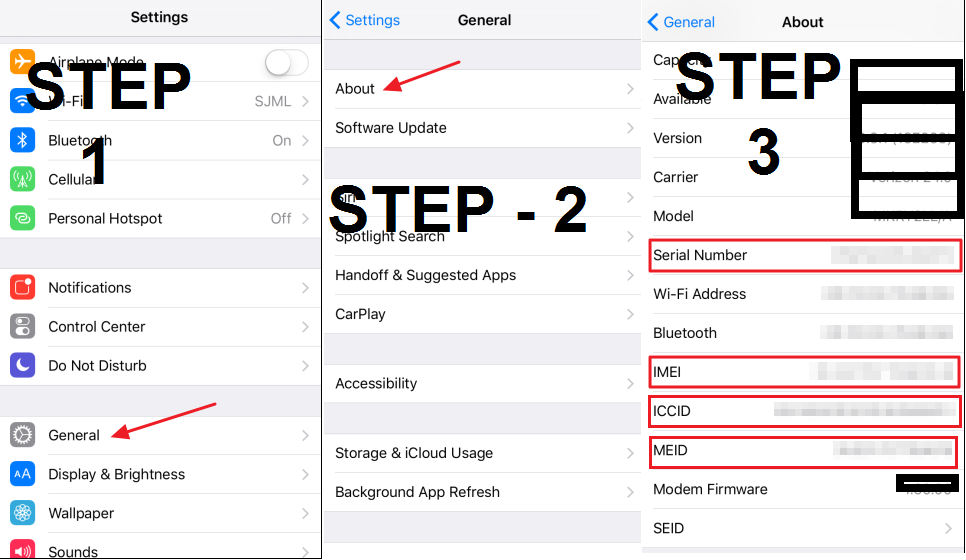
Note: To check Serial number, ICCID and MEDI number of iPhone. Follow the steps below.
Read more: How to Schedule WhatsApp Messages on Android or iPhone and Send Message at Specific Time
iPhone users can find the IMEI, Serial number, ICCID, and MEID by opening few settings of the iPhone.
It is the best way to check your IMEI and other numbers. Well, note down these numbers for the future. These numbers are significant and useful for your iPhone. If your iPhone is stolen then, you can use your IMEI number for complaint.
Read more: How to Send a Fax From My Phone – Android or iPhone [Send a Fax From your Phone]
It is the best and easiest way to check the IMEI number of iPhone and another different number on your iPhone. You don’t need to install any apps on your iOS to check your IMEI number and others. I will also suggest you keep all these numbers secure from others. Don’t share any of this vital information on your iPhone.
This post was last modified on December 31, 2021 17:03
Learn how to increase virtual memory in Windows 11, which in turn will improve system…
Learn how to remove OneDrive from File Explorer in Windows 11 with account unlinking, Group…
Learn how to find largest files on Windows 11 with File Explorer, Storage Settings, and…
Learn how to turn off OneDrive on Windows 11 by going to sync settings, unlinking…
Learn how to insert calendar in PowerPoint with templates, tables, or Excel. Present professional and…
Learn how to create templates in Outlook, which in turn will save you time, improve…
This website uses cookies.