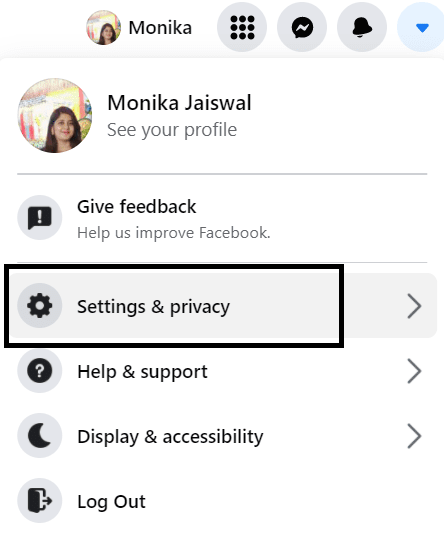
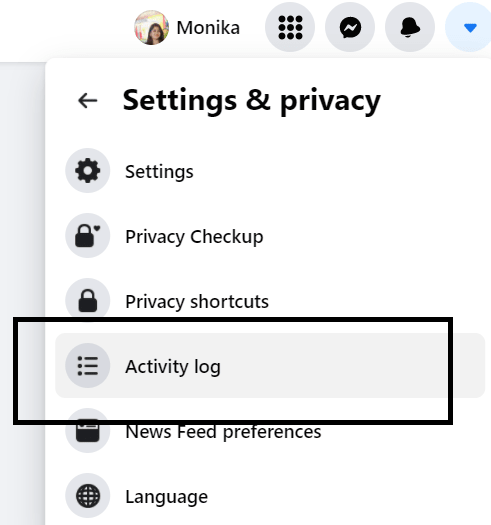
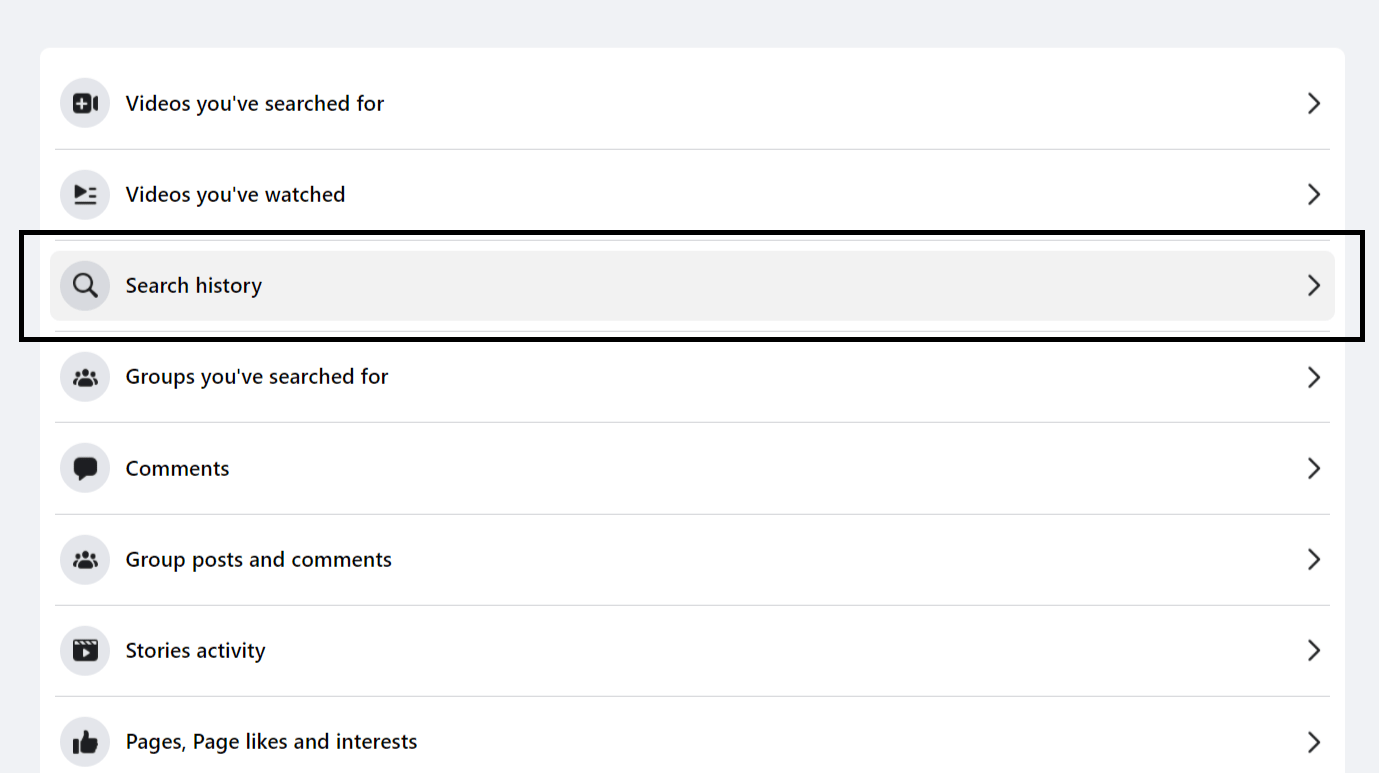
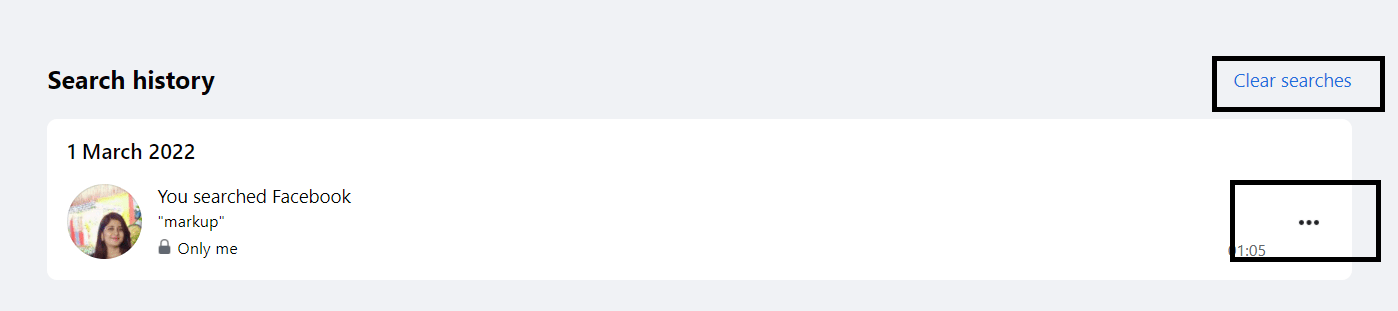
You can delete your Facebook search history from your Android, iPhone or Windows Mac PC/Laptop. You can clear your friend, videos or anything you search on Facebook. I have shared way with a screenshot to clear everything you search on Facebook.
It’s fun to use Facebook, but there are occasions when it records information about us that we don’t want to see. Using Facebook’s search tool, you can keep track of what you’ve recently looked up, which is useful for navigating back to pages you often visit. However, what and who you search for on Facebook is a personal concern that you may keep to yourself.
In addition, you may want to wipe your computer’s or phone’s Facebook search history before handing it over. Hence, the people you’ve been looking up on Facebook will not be visible to anyone.
Read more: How to Turn Off Active Status on Facebook on Android
On Facebook, all of your daily activities are recorded in an activity log, which can only be viewed by you and anyone with access to the device you shared it with. If this is the case, you may want to delete the history of its searches.
Read more: What Does ISO Mean On Facebook
Based on your preferences, you can browse through your Facebook activity log to find out what has happened on the site. So, in this section, I will aid in the process to delete Facebook search history on windows/mac/pc.
Read more: How to Reduce Facebook Data Usage on Android
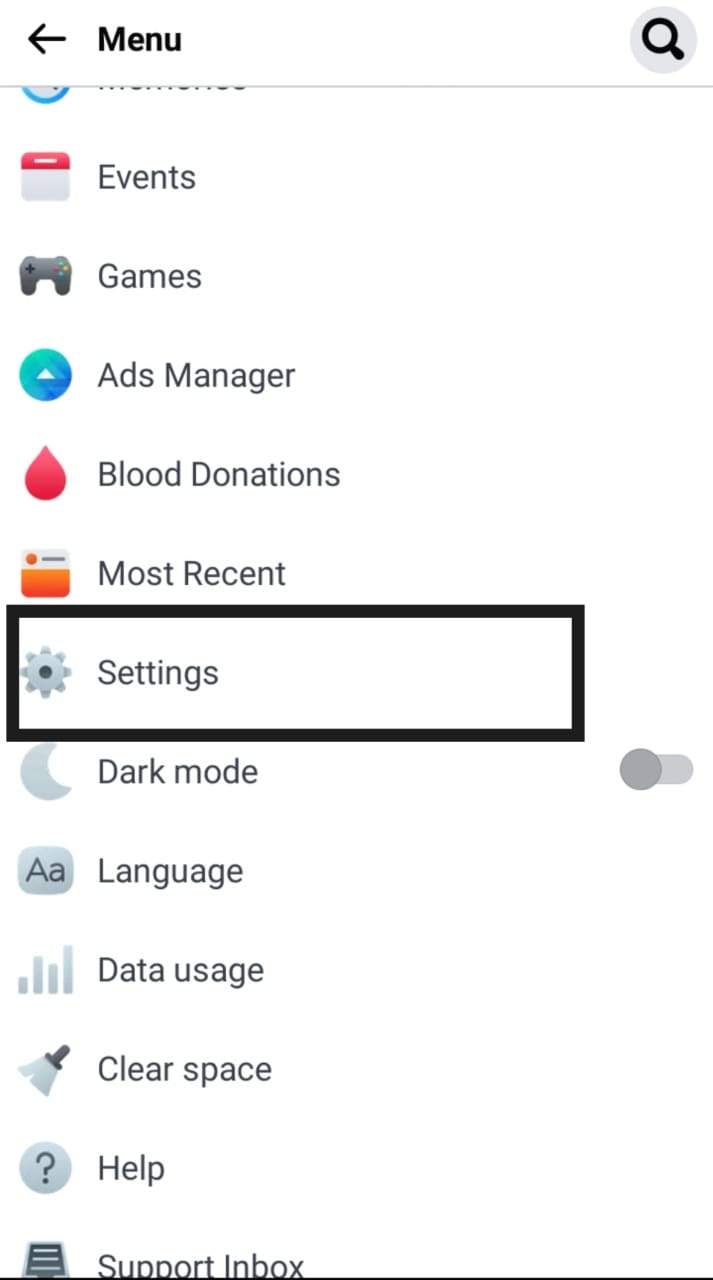
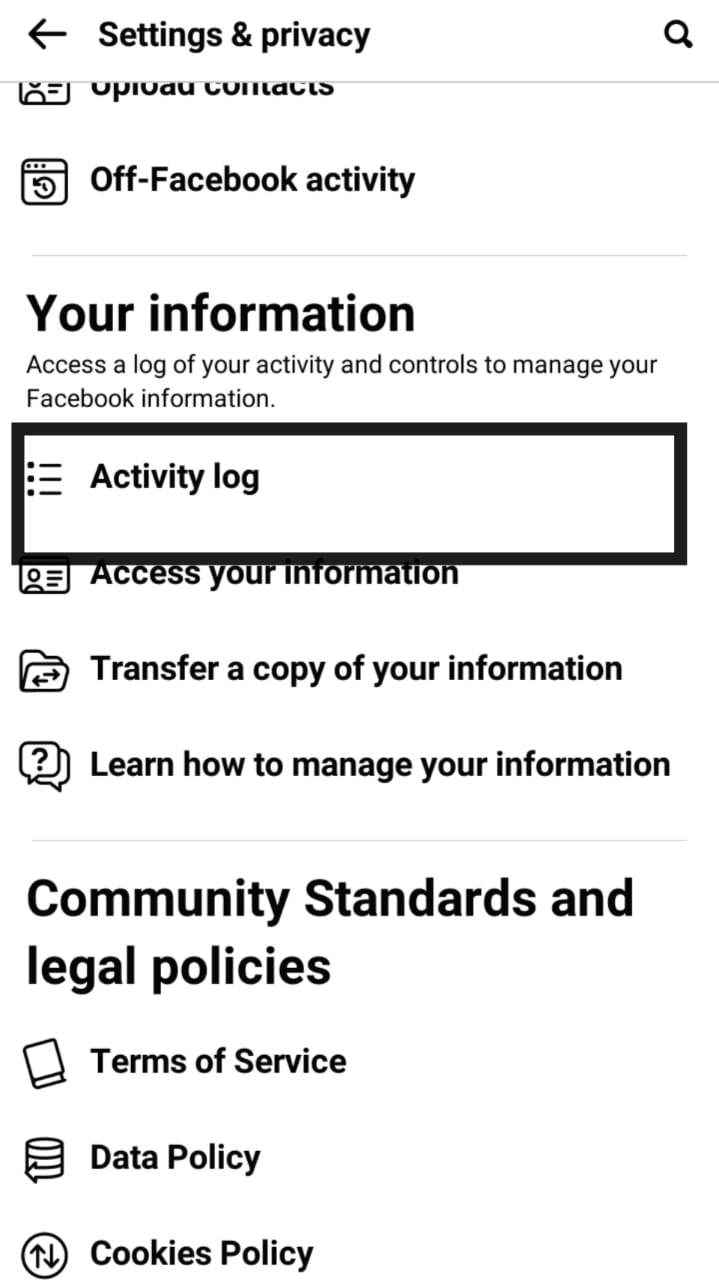
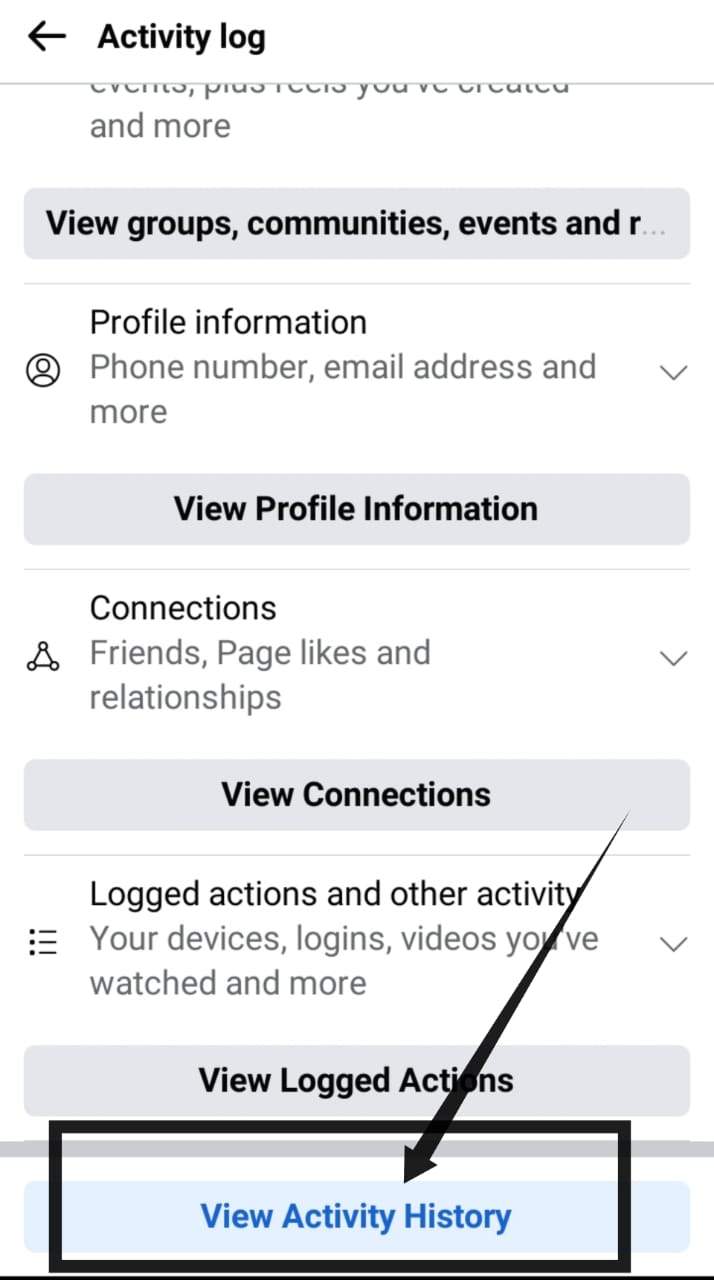
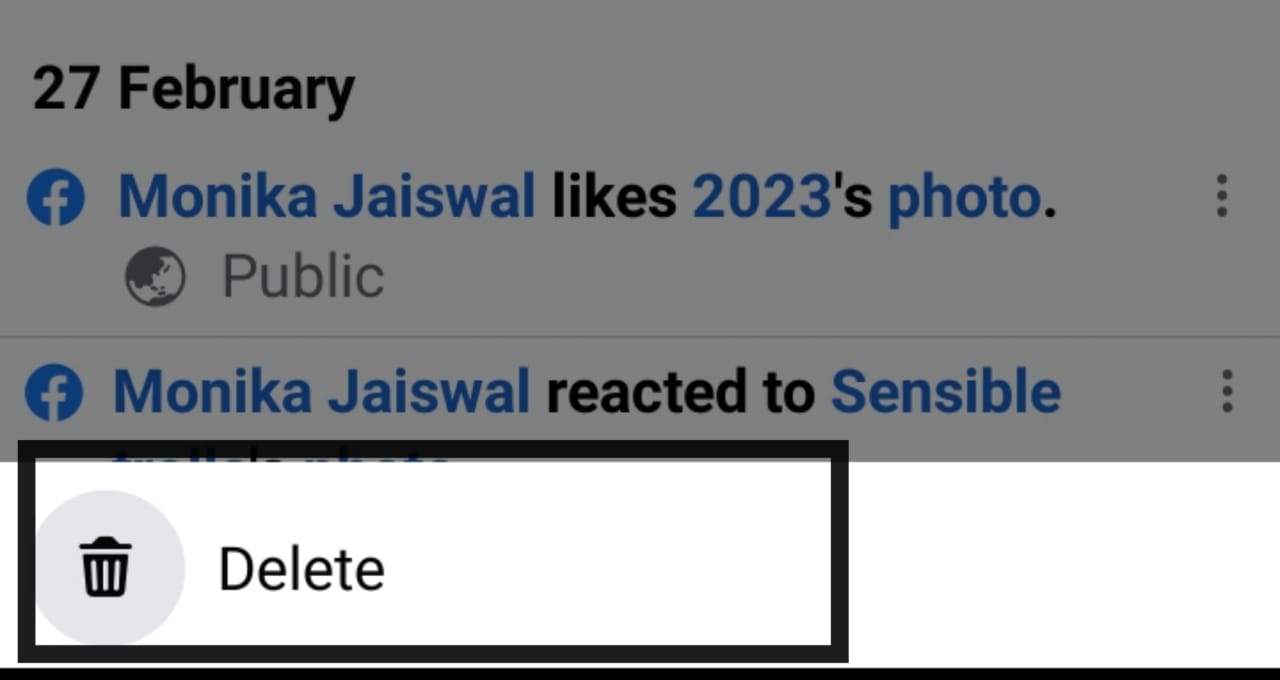
To delete your Facebook search history on Android/iPhone are as follows:
Read more: How to Hide Your Facebook Page Temporarily on PC
Perhaps you like to clean up your browsing history regularly out of habit. If other people use your Facebook account, even if you know about it, you may want to keep some searches from them even though you know about them. This is an excellent way to keep things even more private, and it works well.
Also, If you often search for things associated with an extinct passion, you might want to cease viewing relevant results. To accomplish this, you can delete your search history. As a result of this technique, you’ll be able to erase your social network account history.
This post was last modified on March 3, 2022 19:44
Learn how to increase virtual memory in Windows 11, which in turn will improve system…
Learn how to remove OneDrive from File Explorer in Windows 11 with account unlinking, Group…
Learn how to find largest files on Windows 11 with File Explorer, Storage Settings, and…
Learn how to turn off OneDrive on Windows 11 by going to sync settings, unlinking…
Learn how to insert calendar in PowerPoint with templates, tables, or Excel. Present professional and…
Learn how to create templates in Outlook, which in turn will save you time, improve…
This website uses cookies.