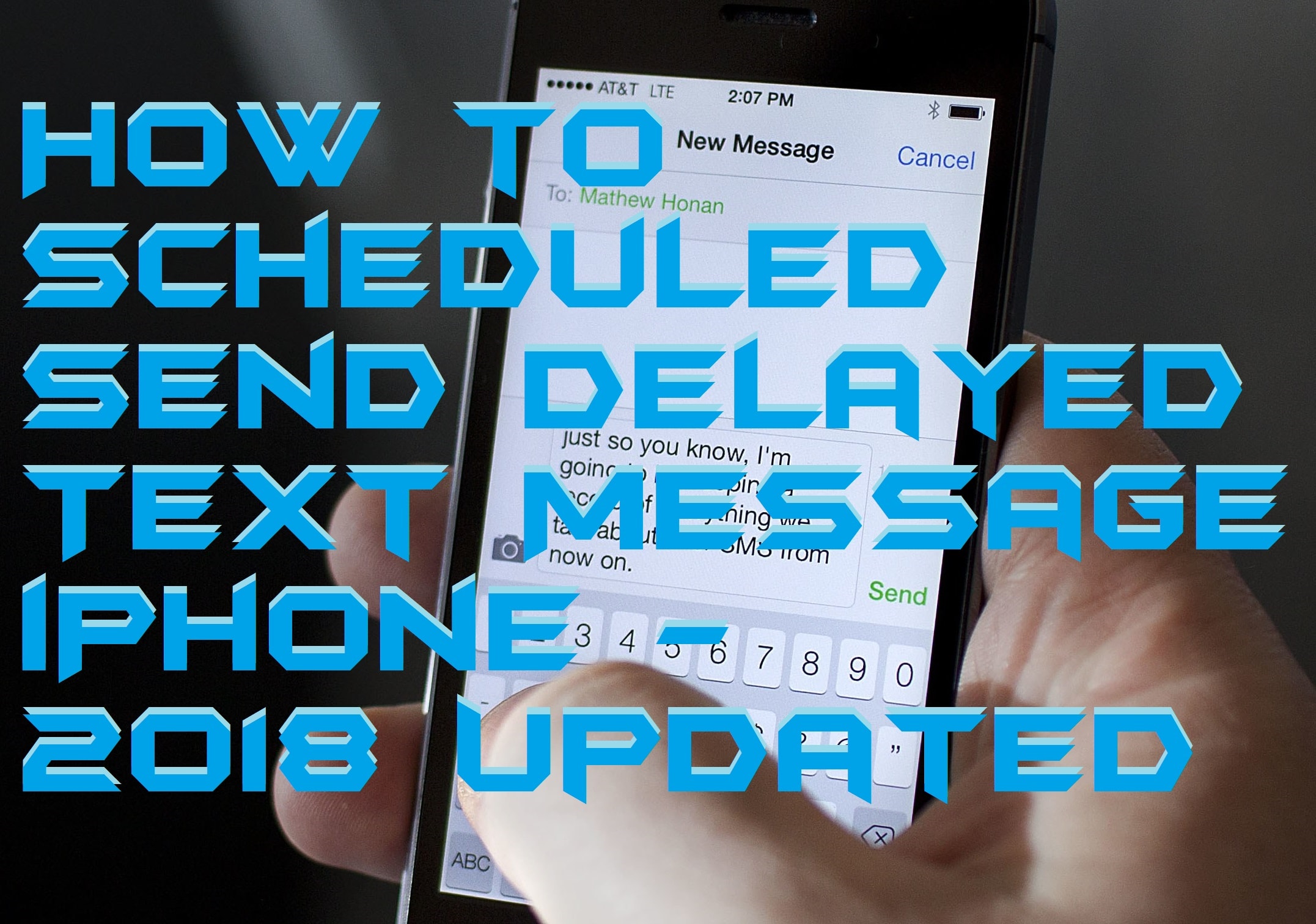
Hello friends, Today I will tell you a method to scheduled text messages iPhone. Users can send delayed text message iPhone. You can send automatic text messages iPhone. Download the iOS app and start this SMS scheduler iPhone and schedule unlimited text messages.
People use SMS text services every day to stay in touch with their colleagues, friends, and family. We all have plenty of people to text every day. But often, there are times when we forget to send an important text message to someone waiting for it. Anniversaries, birthdays, important meetings, and other important events are just a few of them. And some of these messages that you forget to send can end up causing huge troubles. This is exactly where delaying text messages come into play. Delayed Text Message is something that was unheard of in the last few years. Nevertheless, with the introduction of advanced smart applications, this has changed. If you are also an iPhone user, you’re in luck as today we are going to show you how anyone can schedule text messages on iPhone.
Due to iOS restrictions, official applications don’t send the scheduled text messages iPhone automatically. At present, all they do is send you a push notification that you have message scheduled to be sent.
Read more: How to Downgrade from iOS 11 beta to iOS 10 – Rollback from latest iOS version
Firstly, you need to download a free text message scheduling software called Scheduled from iOS Store. Immediately when you open Scheduled for the first time, you’ll be taken to the home screen where you can create delayed messages. You’ll be required to select the recipient, write the message, and select the scheduled date and the repeat interval.
Users can schedule text message on iPhone and send a delayed text message. This iOS app will work on every model of iPhone. You can download this app and send automatic text messages to iPhone.
Read more: How to Enable kid Mode App for iPhone – App to Limit iPhone Use [2018 Updated]
That’s it! The delayed message will be shown as a notification on your iPhone screen on the date and time set. Open this notification and tap on “Send Message” to send your delayed text message.
You can also send messages using other messaging apps such as WhatsApp or iMessage. Just tap on “Send Using” option is the menu and select which app you want to use for sending a delayed message.
Read more: iOS 11 – Advantages and Disadvantages [iOS 11 vs iOS 10]
With Scheduled, you can be sure never to forget sending any message, be it a birthday, anniversary or an important meeting. We’d all love delaying feature for text messages, but Apple restricts the developers from that and allows only scheduling these messages. However, we hope this is modified soon.
Users can scheduled text messages iPhone. You can even send delayed text message iPhone. This is best and working method to send delayed text messages on iPhone. You can schedule any kind of text message. Don’t forget to share this trick on Scheduled text messages on iPhone.
This post was last modified on January 12, 2018 12:42
Learn how to increase virtual memory in Windows 11, which in turn will improve system…
Learn how to remove OneDrive from File Explorer in Windows 11 with account unlinking, Group…
Learn how to find largest files on Windows 11 with File Explorer, Storage Settings, and…
Learn how to turn off OneDrive on Windows 11 by going to sync settings, unlinking…
Learn how to insert calendar in PowerPoint with templates, tables, or Excel. Present professional and…
Learn how to create templates in Outlook, which in turn will save you time, improve…
This website uses cookies.