HOME

How To Remove Shortcut Virus From Pendrive Permanently – Easy Method

Today, I will tell you 100% working tricks to remove shortcut virus from Pendrive permanently. You can delete hidden files or folder from your USB/Pendrive. I will share three different methods to delete virus from your Pendrive using CMD, Antivirus, and some software. You can remove any virus from your Pendrive.

Remove Shortcut Virus From Pendrive Permanently

I have shared all possible and easy methods to remove shortcut files from your Pendrive. Well, don’t forget to copy your necessary files from your Pendrive. Do a backup of your Pendrive and then follow these methods. As these methods can delete your data from Pendrive

Read more: How to Recover Deleted Facebook Messages, Photos and Videos

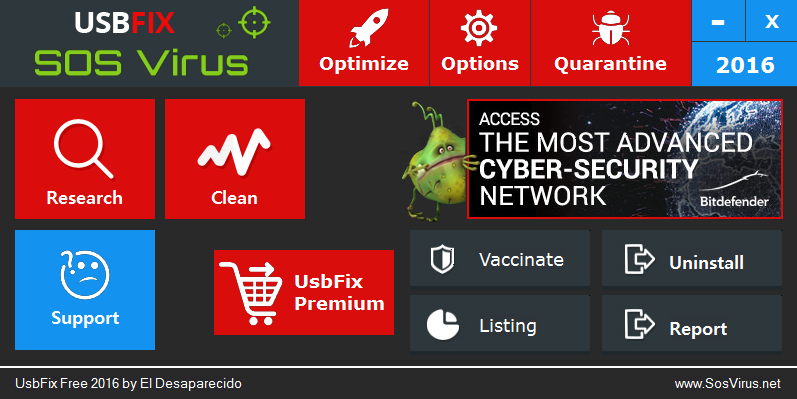
How To Remove Shortcut Virus From Pendrive Permanently using USB Fix

  • Download UsbFix and install on your system.
  • Now, plug in your Pendrive.
  • Now, click on clean.
  • Now, it will delete all the unwanted data from your Pendrive.

Read more: How to Increase RAM of Android Phone without Root – Use Memory card/SD card

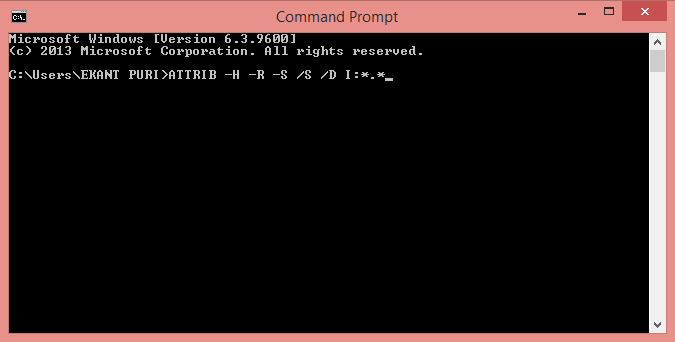
How To Remove Shortcut Virus From Pendrive Permanently using CMD-Command Prompt

  • Plugin your Pendrive to PC.
  • Now, click on start and search CMD to open the command prompt.
  • Now, paste this code in command prompt.

ATTRIB -H -R -S /S /D E:*.*

Replace the Letter E with your drive name. You have to enter the same drive name in which you have registered your Pendrive.

  • Now, click on enter.
  • This was it! You have successfully removed the shortcut from your Pendrive.

How To Remove Shortcut Virus From Pendrive Permanently using Antivirus

There are several antiviruses present on the internet. But, to remove shortcut virus from Pendrive, you need to go for much better and reputed antivirus. If you have any premium antivirus then, it is perfect. I will share few antivirus links and tell you a trick to removing shortcut virus from Pendrive permanently.

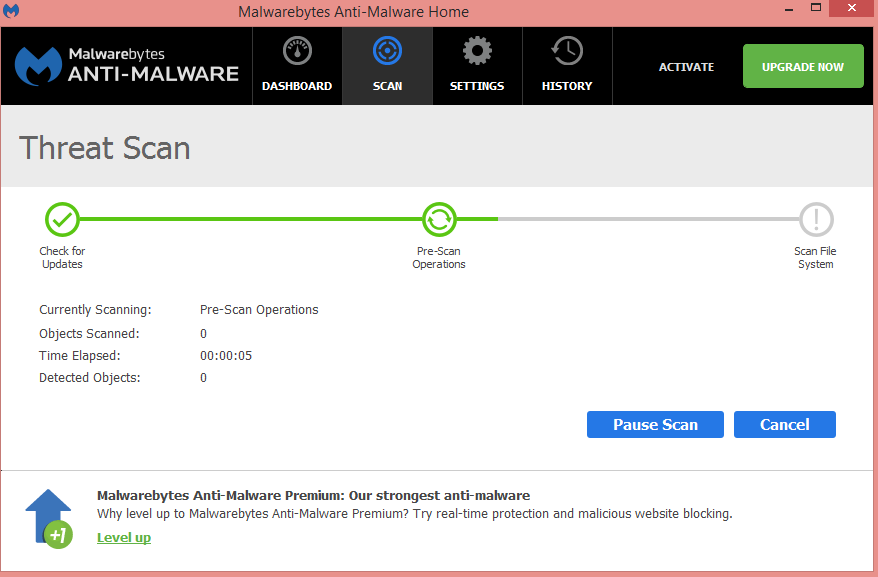
  1. Download Malwarebytes or SmadAV.
    Note: After downloading these Antiviruses, update them and then use.
  2. Plug in your Pendrive.
  3. Now, It will start scanning your drive.
  4. It will show you the infected files present in your Pendrive. It will also show all hidden files.
  5. Now, Select all files and click on delete.


Was this article helpful?
YesNo

This post was last modified on December 31, 2021 15:39

Ekaant Puri

I love to write about the latest technology. My work is to write on HowTo, Top 10 and tech solving topics.

Recent Posts

How to Stop Safari From Opening Apps – Complete Details

Learn how to stop Safari from opening apps at will. We have put together some…

5 hours ago

How to Turn on Developer Mode on Chromebook – 5 Easy Steps

Learn how to turn on Developer Mode on Chromebook with step-by-step instructions. Also, we’ll cover…

6 hours ago

How to Transfer Google Photos to External Hard Drive – 2 Easy Methods

Learn how to transfer Google Photos to external hard drive, which is easy with Google…

1 day ago

How to Turn off Flash Notification on iPhone – 5 Easy Steps

Learn how to turn off Flash Notification on iPhone from this easy guide. We will…

1 day ago

How to Create Google Forms for Free – 9 Easy Steps

In this, you will learn how to create Google Forms for free with our step-by-step…

3 days ago

How to Transfer Microsoft Authenticator to New Phone – 3 Easy Steps

Learn how to safely transfer Microsoft Authenticator to new phone using backup and restore. We…

3 days ago

This website uses cookies.