Turn off sound notifications from your Facebook account in less than 10 seconds. Remove all kind of popup notifications from your Facebook account.
Facebook Sound Notifications are very irritating. It gives sound notification even if a person has liked your status. The condition becomes worst when someone tags you in their picture. When you get tagged, it doesn’t matter you know people or not but, if the comment on that picture. Then, you will get that irritation sound.
Read more: How to Recover Deleted Facebook Messages, Photos and Videos
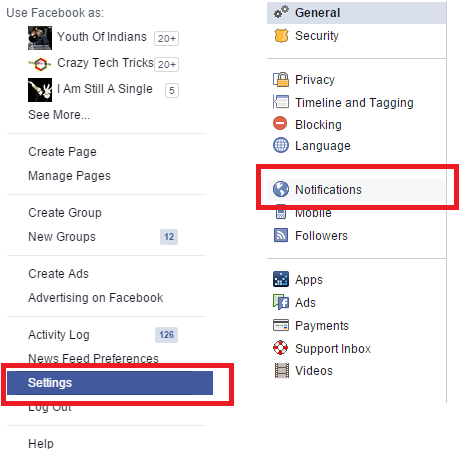
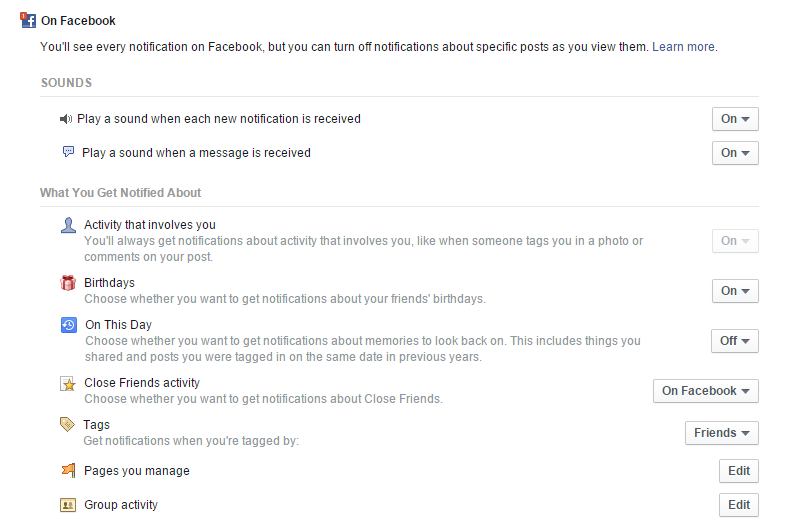
While people were suffering from this irritating sound notification. Facebook released a new feature of notification popup. Well, if you are using your Facebook while sitting with your friends. Then, they can also see what message you got even when you have not opened Facebook in your browser. In this article, I will tell you a trick to stop notifications from Facebook. The best method to turn off the sound of announcements. Right, click on the top right side of Facebook. As shown in the picture. Now, click on settings. Now, you will see several options on the left side. Click on notifications.
The best method to turn off the sound notifications on your computer. It will stop all kind of sound notifications from your Facebook account.
Congratulations you have successfully turned off sound notifications from Facebook.
It is quite similar to above method. First, visit setting >> Notifications >> Edit Desktop then, click on Turn off, you will find under the Desktop section. Once you click on Turn off just save it.
This post was last modified on March 19, 2018 01:34
Learn how to increase virtual memory in Windows 11, which in turn will improve system…
Learn how to remove OneDrive from File Explorer in Windows 11 with account unlinking, Group…
Learn how to find largest files on Windows 11 with File Explorer, Storage Settings, and…
Learn how to turn off OneDrive on Windows 11 by going to sync settings, unlinking…
Learn how to insert calendar in PowerPoint with templates, tables, or Excel. Present professional and…
Learn how to create templates in Outlook, which in turn will save you time, improve…
This website uses cookies.