Use WiFi and data at the same time on Android. You can use WiFi/3G/4G connection all at once. Download the software and enjoy WiFi and mobile data pack at once. Increase your download speed with the combination of WiFi and data pack.
Read more: How to Recover WiFi Password on Android Without Root – 100% Working
I would suggest you use Root Android phone for this trick. You can also use this trick with the regular Android phone. But, we found some problem in un-root Android phone. So, for 100% success try this trick on Rooted Android phone.
Read more: How to find Free WiFi Hotspots Anywhere [Download Apps]
Read more: How to Get Paid Apps for Free on Android Without Root – Download the latest Version [2016]
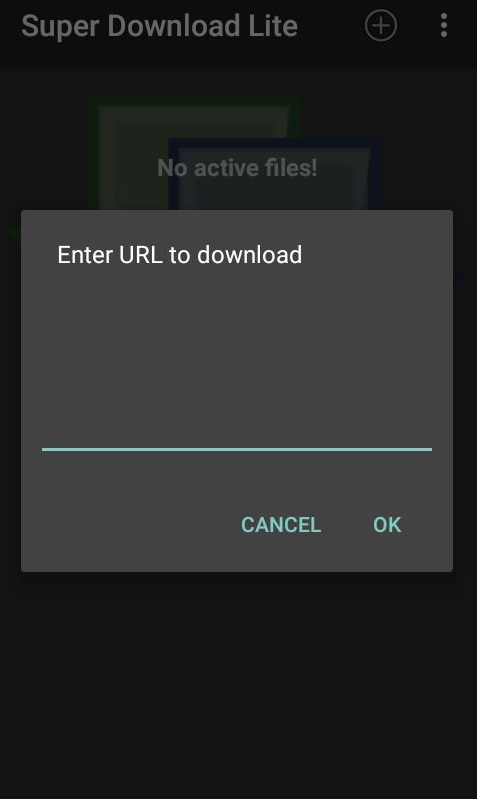
Congratulations! You have successfully enabled the WiFi and data pack at the same time. You can add any URL of the file you want to download. It will rapidly increase the download speed with the combination of WiFi and mobile data pack.
It is the best method to use WiFi and data at the same time on your Android device. It will allow you to use both WiFi and data pack simultaneously. You can download any size file for faster browsing. If you face any problem regarding this trick. Then, make comment below and don’t forget to share this article with your friends.
This post was last modified on February 1, 2022 00:13
Learn how to increase virtual memory in Windows 11, which in turn will improve system…
Learn how to remove OneDrive from File Explorer in Windows 11 with account unlinking, Group…
Learn how to find largest files on Windows 11 with File Explorer, Storage Settings, and…
Learn how to turn off OneDrive on Windows 11 by going to sync settings, unlinking…
Learn how to insert calendar in PowerPoint with templates, tables, or Excel. Present professional and…
Learn how to create templates in Outlook, which in turn will save you time, improve…
This website uses cookies.