Hello friends, Today I will tell you a method to disable fast user switching on Windows 10, 8, 8.1 and 10. You can Switch users very fast on your Windows PC/Laptops. This is the best method to switch user in Windows. Users can even Disable switch user Windows 7 and others.
Fast User Switching is s feature in which Windows user can switch for another account without logging out. Fast User Switching has some drawbacks also. Suppose, you are using any account in your Windows PC and then you want to switch to another existing account. Though some software’s continuously runs in the background of your Windows Computer and they decrease the speed of your computer while using Fast User Switching method.
Read more: How To Set Custom Icons on Folder In Windows
We are now going to learn 2 best and easiest way to disable fast user switching method in our windows 7, 8, 8.1, 10 PC/laptop. The guide is below which will help you in learning to disable fast user switching method on your windows PC/laptop.
Read more: How To Download MX Player For PC
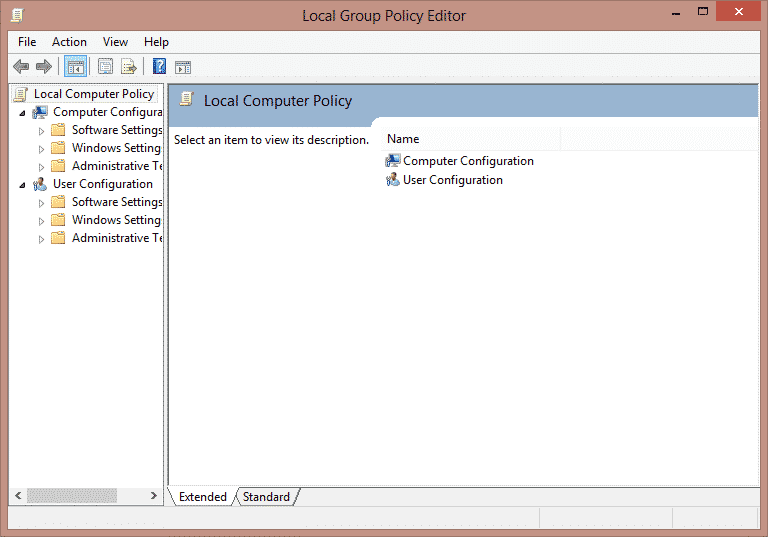
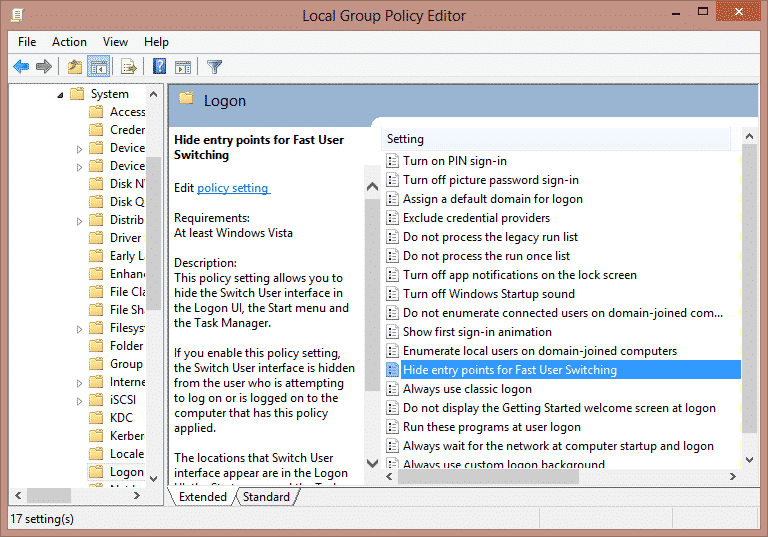
This method is very simple which we are going to learn. In this method, we will use local group policy editor to disable fast user switching method in our computer.
You are done now. Guys, you successfully disabled fast user switching features from your windows computer.
Read more: How to FIX Windows 10 Start Menu Missing Issue – 3 Best Methods
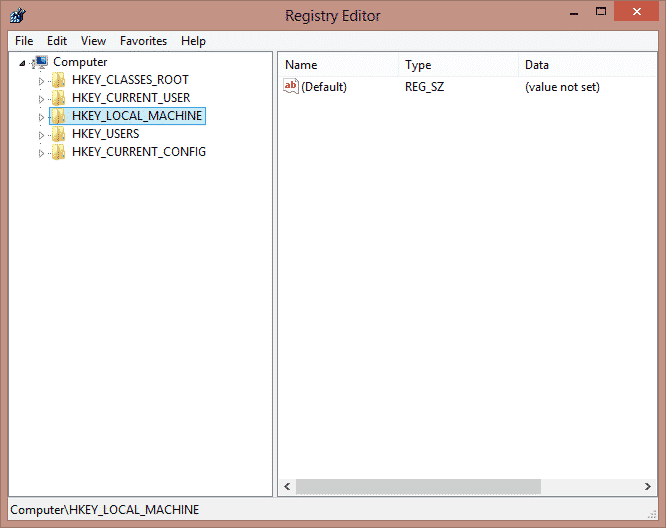
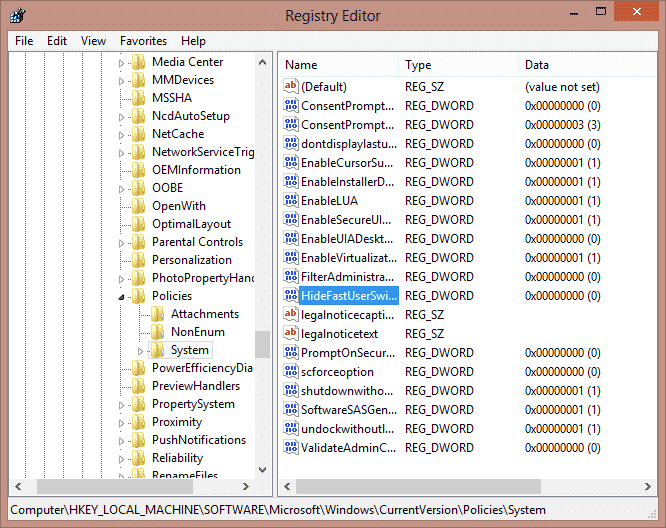
In this method, We are going to use Registry method to disable fast user switching on our windows computer.
That it! You have successfully disabled fast user switching feature from our windows PC windows 7, 8, 8.1 or 10.
These are best methods to disable fast user switching on Windows/PC. You can disable fast user easily and quickly. If you have any question regarding this trick. Then, do make a comment below and don’t forget to share this article with your friends.
This post was last modified on December 31, 2021 17:50
Learn how to increase virtual memory in Windows 11, which in turn will improve system…
Learn how to remove OneDrive from File Explorer in Windows 11 with account unlinking, Group…
Learn how to find largest files on Windows 11 with File Explorer, Storage Settings, and…
Learn how to turn off OneDrive on Windows 11 by going to sync settings, unlinking…
Learn how to insert calendar in PowerPoint with templates, tables, or Excel. Present professional and…
Learn how to create templates in Outlook, which in turn will save you time, improve…
This website uses cookies.