Best guide on how to make a spreadsheet in Microsoft Word. You can use this method to create a spreadsheet in Microsoft Word. Create a Spreadsheet and quickly collect all your data. Users can make the unlimited Spreadsheet in Microsoft Word. You can make in Microsoft Word 2006, 2010, 2013 and 2016.
You have ever wondered how to make a spreadsheet in Microsoft Word? One of the best features in Microsoft Office is the ability to conjoin two common programs we use daily, like Microsoft Word and Microsoft Excel. Although the best application for spreadsheet use is Microsoft Excel, there can be times when you might to need to add a spreadsheet to something like a business report.
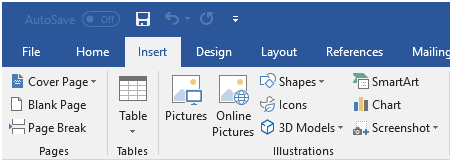
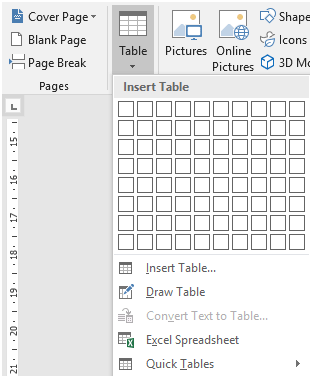
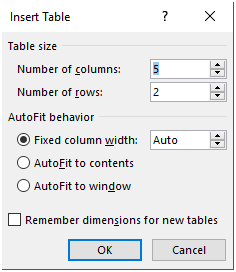
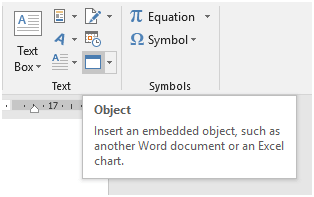
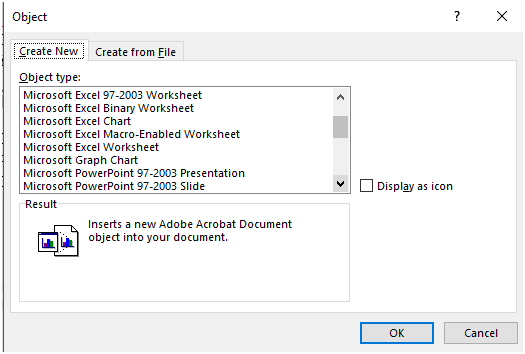
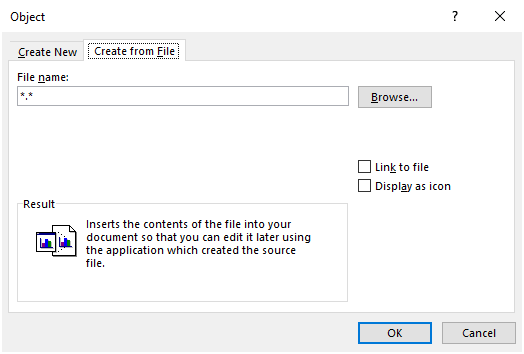
Even though Microsoft Word is a word processing software, it’s still possible to add a spreadsheet to it. It can be done through Insert Table feature. Or creating a spreadsheet using tables. Or by inserting a blank Excel document directly to the Word document. Moreover, you can also use the Insert Object option to add a previously made Excel spreadsheet into Microsoft Word.
It is a method to link an already completed spreadsheet with Word document in a single file. Today we are going to show you how to make a spreadsheet in Microsoft Word.
Read more: How to Recover Unsaved Word Document
Read more: How to login to Windows 10 Without Password
Read more: How to Use Skype Without Microsoft Account
Read more: How to Reset Administrator Password Windows 7
Microsoft Word is a great way to make any documentation. Several people have asked for an inbuilt feature of Spreadsheet. But till now no specific update is released. But there is a hidden method on how to make a spreadsheet in Microsoft Word. Users can use these three amazing methods to create a spreadsheet in Microsoft Word.
You can also share another technique you know on how to make a spreadsheet in Microsoft Word in the comments section below. Do share this article on how to create a spreadsheet in Microsoft Word with your friends.
This post was last modified on October 10, 2020 01:02
Learn how to increase virtual memory in Windows 11, which in turn will improve system…
Learn how to remove OneDrive from File Explorer in Windows 11 with account unlinking, Group…
Learn how to find largest files on Windows 11 with File Explorer, Storage Settings, and…
Learn how to turn off OneDrive on Windows 11 by going to sync settings, unlinking…
Learn how to insert calendar in PowerPoint with templates, tables, or Excel. Present professional and…
Learn how to create templates in Outlook, which in turn will save you time, improve…
This website uses cookies.