HOME

How to Send Emails to Gmail “Primary” tab in place of “Promotion” or ”Social” – Easy Method

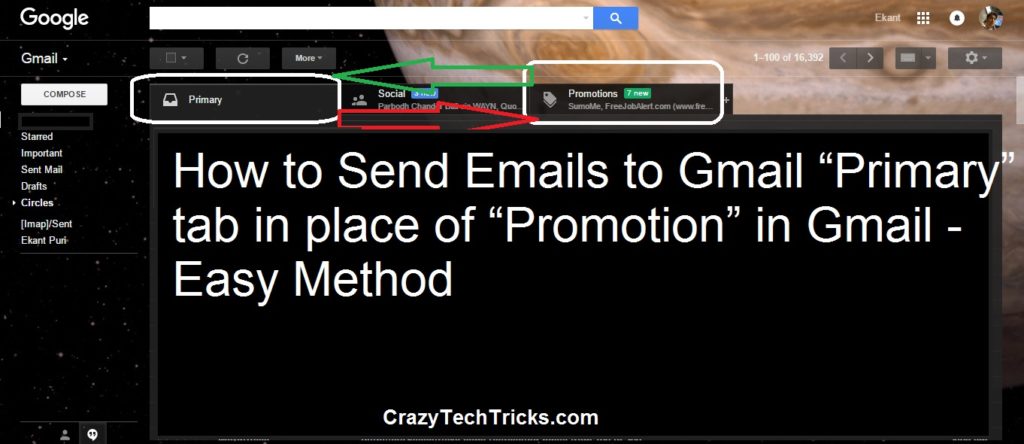
Send Emails to Primary Tab in Gmail. An easy method to place your email in a Primary tab instead of Promotion or Social Tab. Always place your emails in the Primary tab of Gmail. Remove your email from the Spam folder. Follow the simple and easy steps to send emails directly to the Primary section of Gmail.

Almost all of us have Gmail ID and have noticed that it has three sections namely “Primary” “Social” and “Promotion.”  Whatever emails we receive are being delivered separately to these three sections. We usually open the Primary section because it contains all essential emails that we receive but what about rest two parts? I have a solution for you guys it’s of landing your emails in the Promotional section of the Primary section.

Send Emails to Gmail “Primary” tab instead of Promotion in Gmail

I will tell you few ways to send emails directly to Primary tag instead sending in Promotion Tab in Gmail.

Know more: How to Email Large Files on iPhone – Easy Method

  • Add the person’s name you are sending the mail to:
    This step will provide you two benefits, the first one is your mail will look like a personal email, and it would get landed in the “Primary” section of your Gmail account.
    The second thing would be the person will get a feeling that this mail is written for him/her.
  • Keep a check on links and pictures you attach to your mail:
    Try to be very sensitive to whatever link or photo you are connecting to your mail. This thing put a great effort in diverting the Promotional mail to the “Primary” section. Make sure that you are not attaching more than 2 links or 3 photographs with the email.

Know more: How to Check whether your Email Read or Not on Gmail Yahoo Outlook

  • Use HTML Editor without Using Pre-designed Templates to write a mail:
    This experiment will mail proved to be a great one as it works well in landing emails to “Primary” section. I have seen many people using pre-designed templates but do you know extra codes of pre-designed templates can make your mail land in the “Spam” option. Yes, unwanted pre-designed templates make your mail spam.
  • Turn off the RSS campaign when you are emailing somebody:
    It is known to most of us that RSS is automated. If you will not turn it off before sending the mail your mail would be considered as a fake or promotional mail. It will make your mail be dropped in the “Promotional” section.

Last Words on How to Send Emails to Gmail “Primary” tab in place of “Promotion” or ”Social” – Easy Method

Aren’t these tips mentioned above amazing? I think these points are clear to all of you out there. You just have to find out what is making your mail landing in the “Promotional” section and sort it out.

Was this article helpful?
YesNo

This post was last modified on March 26, 2018 03:03

Ekaant Puri

I love to write about the latest technology. My work is to write on HowTo, Top 10 and tech solving topics.

Recent Posts

How to Insert Calendar in PowerPoint – 3 Easy Methods

Learn how to insert calendar in PowerPoint with templates, tables, or Excel. Present professional and…

2 days ago

How to Create Templates in Outlook – 5 Easy Steps

Learn how to create templates in Outlook, which in turn will save you time, improve…

3 days ago

How to Delete Old Addresses on Amazon – 6 Easy Steps

Learn how to delete old addresses on Amazon with simple step-by-step instructions. Also, you will…

4 days ago

How to Make Reddit Account Private – 5 Easy Steps

Learn how to make Reddit account private, which includes simple privacy settings, hiding your online…

5 days ago

How to Unshare a Google Doc – 4 Easy Steps

Learn how to unshare a Google Doc, also how to remove user access, restrict link…

1 week ago

How to Delete a Draft on TikTok – 5 Easy Steps

Learn how to delete a draft on TikTok with easy step-by-step instructions. Remove the unwanted…

1 week ago

This website uses cookies.