Hello friends, Today I will share the best method on how to Use 2 WhatsApp in dual SIM phone. You can install two WhatsApp on your Android Phone. Users can use two WhatsApp with two different number. You can even use two WhatsApp at one time and send messages, videos and etc.
If you have a dual SIM phone, you can use them to text using separate numbers, and make calls using different numbers. But do you know that you can also use two different WhatsApp accounts with two different numbers? If you are also wondering how to use 2 WhatsApp in dual sim phone. Then you have come to the right place. While many smartphones come with built-in features for using different accounts like Xiaomi, Vivo, and Oppo, there are also some third-party applications that make it easy to run two WhatsApp accounts on one phone.
If you have a dual SIM phone then your first step should be to check your device settings as it’s quite possible that your phone already has inbuilt feature for dual WhatsApp. Many Chinese brand smartphones allow you to create clones of various applications which can be used in dual SIM devices. In Vivo, the feature is called App Clone. In Xiaomi it’s knowns as Dual Apps, while Oppo has named it Clone App.
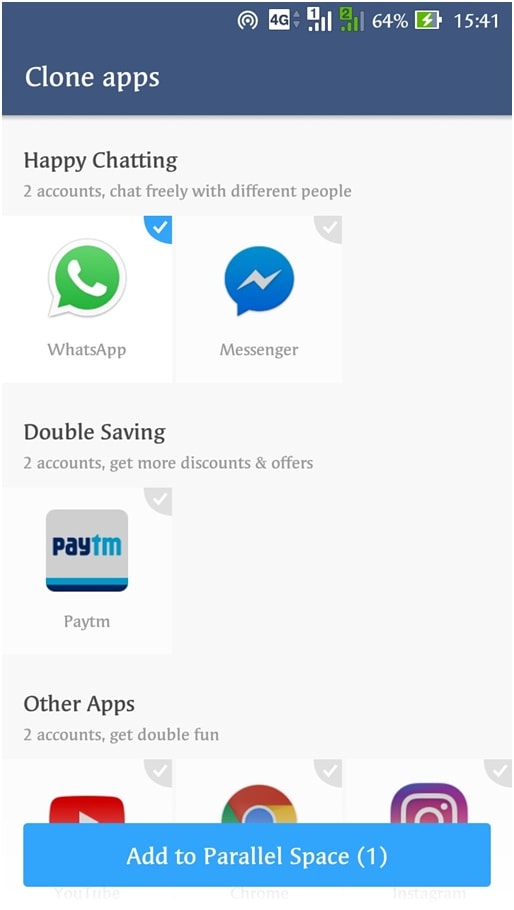
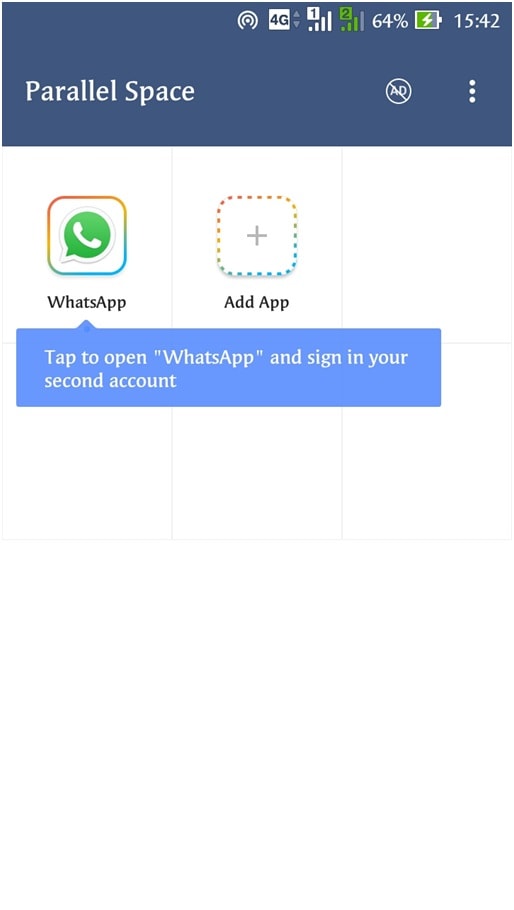
But what if my phone doesn’t have any feature like that? That’s nothing to worry about. As mentioned before, there are many third-party apps that can help you install a copy of WhatsApp. However, you’ll still need a dual SIM smartphone in order to create WhatsApp account from two numbers. There are many popular apps available online but the one we think is best is Parallel Space. As the name suggests, Parallel Space creates a “parallel” app by cloning the application you wish to use twice.
And that’s it! You can use WhatsApp and any other app you want by creating its clone using Parallel Space app. Although Parallel Space is free to use, it’s ad-supported. However, you can remove ads with subscription available as in-app purchase. This method can also be used for using two different Facebook, Twitter, or any other social media accounts on one phone. Another third-party application you can use to clone WhatsApp is GBWhatsApp. But unlike Parallel Space, this app can be used for cloning only WhatsApp.
This is the best trick on how to use 2 WhatsApp in dual sim phone. Users can use multiple WhatsApp with a different number on single Phone. You can even send same messages to different WhatsApp account. You can use this method to use 2 WhatsApp account on your Android Phone. Don’t forget to share this tricks with your friends and help them to use 2 WhatsApp in dual SIM phone.
This post was last modified on June 15, 2020 22:14
Learn how to increase virtual memory in Windows 11, which in turn will improve system…
Learn how to remove OneDrive from File Explorer in Windows 11 with account unlinking, Group…
Learn how to find largest files on Windows 11 with File Explorer, Storage Settings, and…
Learn how to turn off OneDrive on Windows 11 by going to sync settings, unlinking…
Learn how to insert calendar in PowerPoint with templates, tables, or Excel. Present professional and…
Learn how to create templates in Outlook, which in turn will save you time, improve…
This website uses cookies.
View Comments
Where we should find the OGwhatsapp to install??
Bro, you have to name OGWhatsapp