Internet is the most used modern technology. It is used by billions of people everyday. Yes! billions of people use internet. In today’s world everything is going online from study to shopping. The Internet is becoming our daily basic need. But, having internet and having faster internet are two different things. Almost majority of the internet users are struggling with there internet speed.
These days people also can’t even wait for a second to download a file. But, some files are too big in GB that it take lots of time in downloading. You must have recently updated your windows to windows 10. So, you tell yourself how much time it took to download Windows 10 update. In this article i will tell you two methods to boost your internet speed with Google DNS and Open DNS.
How many of you used YouTube?. You must have observed that Advertisement load faster than Videos on YouTube. In this article we will use there DNS server to increase the speed. Yes! we will use google DNS server to boost our Internet speed and i will also provide you address of Open DNS server.
Read more: How to Speed up Internet on Mac – Increase Internet Speed Mac
There are several advantages of using Google, Open DNS because they provide internet at much faster speed. They also provide us internet when we are struggling with our internet. Yes! these server will work even when your internet is not working.
Read more: How to Send Large Files over the Internet – Top 5 Best Way to Send Large Files
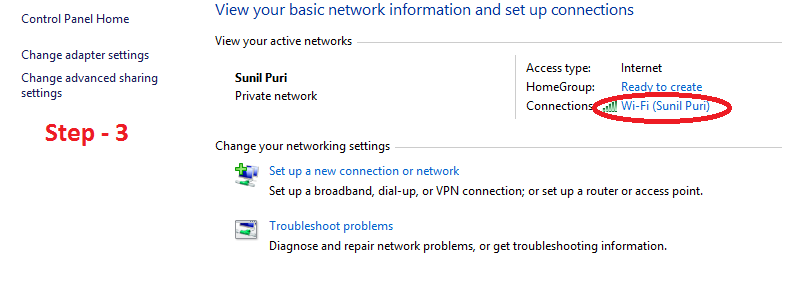
I will tell you a hack which will help you to increase your internet speed with Open DNS. Just follow each and every step below.
Boosting your internet speed with google DNS is similar to above described Open DNS server. There is only one change all you need to write different numbers in Preferred and Alternative DNS server.
So, these are the two methods to increase your internet speed with hack. All you need to do is change the Preferred and Alternative DNS server. I have provided you Google DNS server codes and Open DNS server code. You can choose which is convenient to you and one more thing don’t forget to share this article.
Read more: How to Reduce Data Usage While Tethering to PC/Laptop Browsers – Best Methods for Internet Browsers
This post was last modified on April 29, 2020 01:07
Learn how to increase virtual memory in Windows 11, which in turn will improve system…
Learn how to remove OneDrive from File Explorer in Windows 11 with account unlinking, Group…
Learn how to find largest files on Windows 11 with File Explorer, Storage Settings, and…
Learn how to turn off OneDrive on Windows 11 by going to sync settings, unlinking…
Learn how to insert calendar in PowerPoint with templates, tables, or Excel. Present professional and…
Learn how to create templates in Outlook, which in turn will save you time, improve…
This website uses cookies.
View Comments
is this can also help reduce the lag of any video like in youtube and facebook?
Yes! It will load the website fast and increase internet speed.
Does this works in libya
It will work in every country!
THIS IS WORK!!! thanks
does not work for me
What problem you facing ?
Does This Work For MAC??
Yes! It will work.
worked only for one day
and now it is not working
but whenever i refresh the internet settings in 192.168.1.1 again speed increases for few minutes
any solution plzz ?
Thanks it increased my internet speed
Great!
Please show it for mac also latest OS
Does anyone have issues with their display driver after completing these steps?
NO
yep my internet become faster
How can i do this on a mac?
You can ask for the trick email- crazytechtricks@gmail.com
After all of it at the wifi properties do i need to click on configure and press yes?
Yes! Enter the same DNS server listed above.
Hi After entered the above Ip address my net speed not increased
Disconnect and reconnect...
Can I do this in a phone
No :(
what will be the router wi fi settings for gateway and static dns 1, 2 and 3?
These settings did not work as of now. The speed remained the same
If you are facing problem then you can see - Video tutorial
No need to change.... Just change the DNS server code from Control Panel.