Download windows installer and install windows 7, 8, 8.1, 10 and Vista on your computer, laptop or any system. No product key required. Download from Microsoft’s website with a trick.
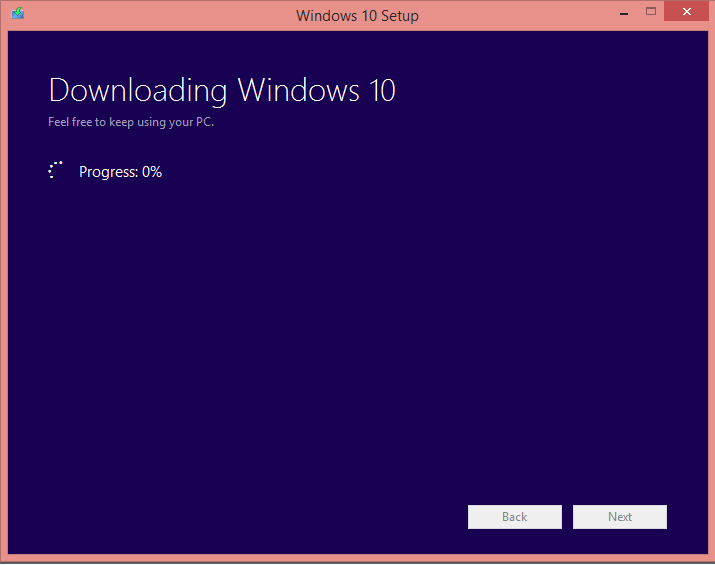
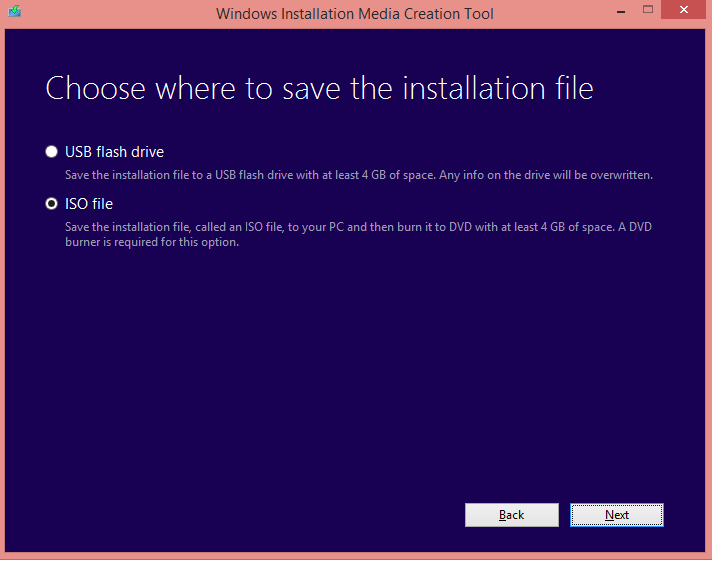
It is very much easy to install Windows 10 on your system. You should have any of these windows 7, 8, or 8.1 on your computer. Then, you can download windows 10 [LINK]. You will be redirected to Microsoft’s official website.
Try this: Several Ways to Install Windows 10 : Serial Key
Read more: How to Update Windows 10 Offline
It is straightforward to download windows 8.1. Even if you are installing windows 8.1 first time on your system.
Windows 8.1 Edition you can download
Windows 8.1
Windows 8.1 N
Windows 8.1 Pro
Windows 8.1 Pro N
Windows 8.1 any language
Windows 8 version doesn’t consist of any media and camera files. It means you won’t be able to run any data which is related to media. You can’t even use the camera on your computer. You won’t be able to access any latest feature of Windows 8.1. It doesn’t have Internet Explorer 11.
If you want to access all the media files, camera and all other necessary feature of Windows 8.1 then, you need to buy from Microsoft’s website. So, install N version as it supports to play all kind of file on your computer and give you all latest software.
Well, to download Windows 8. You should have a product key for Windows 8.
Yes! You can still install windows 7 legally. This method is completely safe and genuine. You can download Windows 7 [lLINK].
You can install windows 7 and keep downloading till you want to download. You should have the original key of Microsoft Windows 7. Then, you can download Windows 7 as many times you want and install windows 7 on your computer. Click on the links below to download Windows 7.
Read more: How to Use the On-Screen Keyboard in Windows 7, 8, 8.1 and 10
This post was last modified on March 26, 2018 03:10
Learn how to increase virtual memory in Windows 11, which in turn will improve system…
Learn how to remove OneDrive from File Explorer in Windows 11 with account unlinking, Group…
Learn how to find largest files on Windows 11 with File Explorer, Storage Settings, and…
Learn how to turn off OneDrive on Windows 11 by going to sync settings, unlinking…
Learn how to insert calendar in PowerPoint with templates, tables, or Excel. Present professional and…
Learn how to create templates in Outlook, which in turn will save you time, improve…
This website uses cookies.