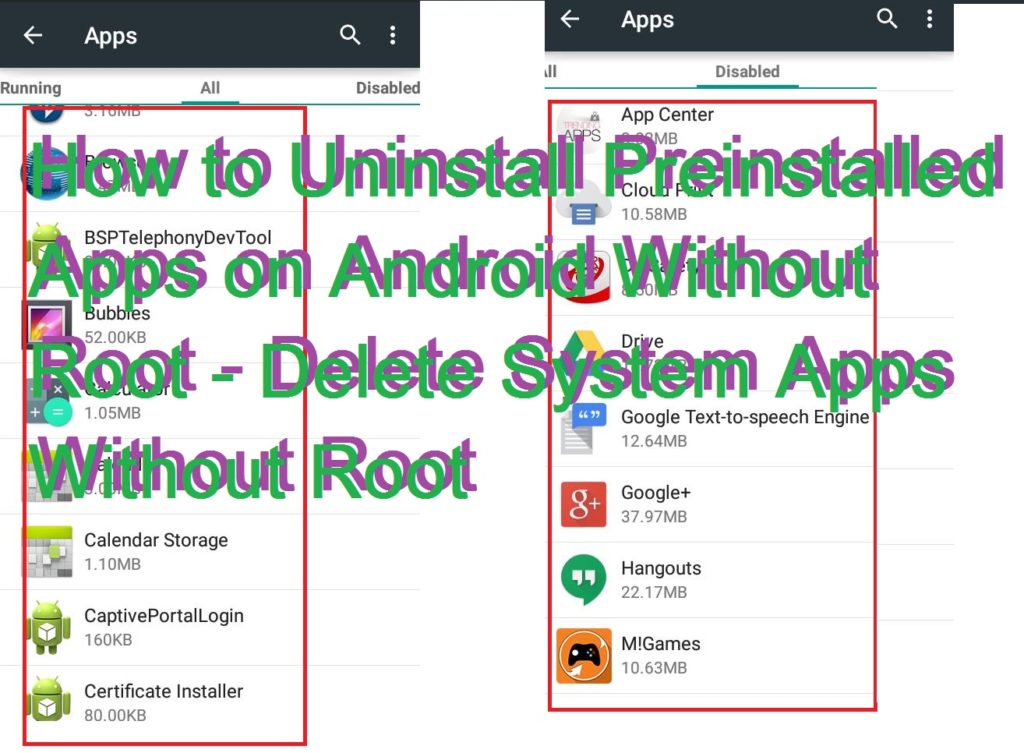
Hello Friends, Today I will share a trick to uninstall preinstalled apps on Android without root. Yes! You heard it right! Deleting system apps without root is possible. You can remove bloatware from your Android mobile phone. You can remove any apps which are preinstalled on your Android device. It will also free some space from your Android Phone. You can even stop system apps from getting installed again on your Android device.
Android phone comes with several preinstalled applications. These apps are preinstalled, and when you buy an Android Phone, you get all these kinds of applications. But, many of the application is not required. There are several preinstalled apps which take a large chunk of your Android storage and RAM. These apps keep on running even when you close them. Pre-installed apps come with system setting which declines all kinds of commands given by users. Well, if you are facing this very same problem then follow the trick and Uninstall preinstalled apps on Android without even rooting your Android device.
Read more: How to Recover WiFi Password on Android Without Root – 100% Working
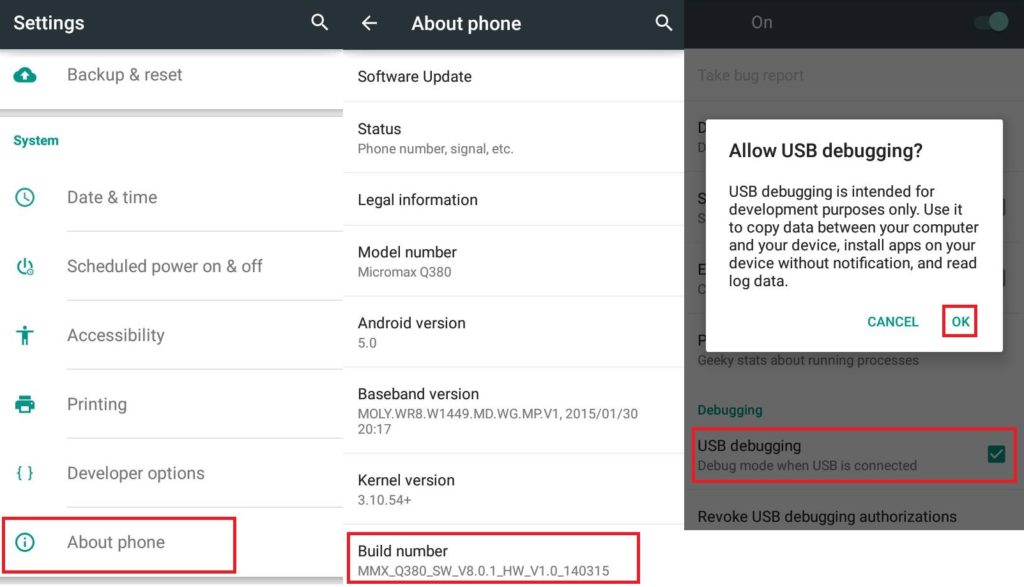
There are several tricks on the internet to uninstall preinstalled apps on Android without root. But, the majority of the methods are found fake on the internet. Don’t worry; I will share a comfortable and safe trick to delete system apps without root from your Android device. You don’t need to download any software on your Android device. Just download the software’s listed below on your PC/laptop. These software’s listed below are completely safe and does not contain any virus.
Read more: How to Remote Control Android Phone from another Android without Root – Download Best Apps
Read more: How to Increase RAM of Android Phone without Root – Use Memory card/SD card
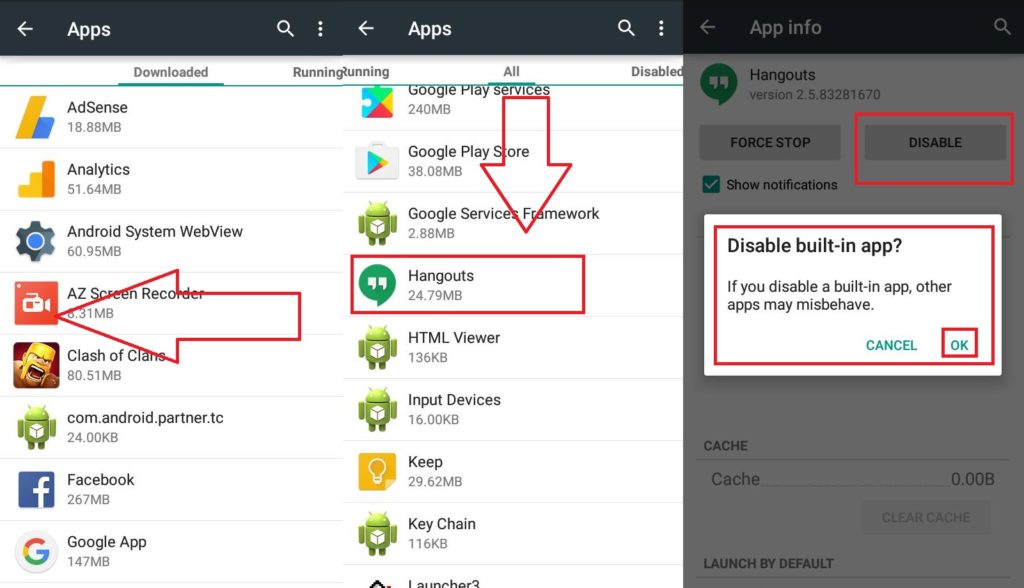
There is one more comfortable method to hide pre-installed apps on your Android. You don’t even need to install any software or apps. You can easily hide all kind of system apps from your Android Phone.
Read more: How to Delete all Facebook Messages at Once on PC/Android
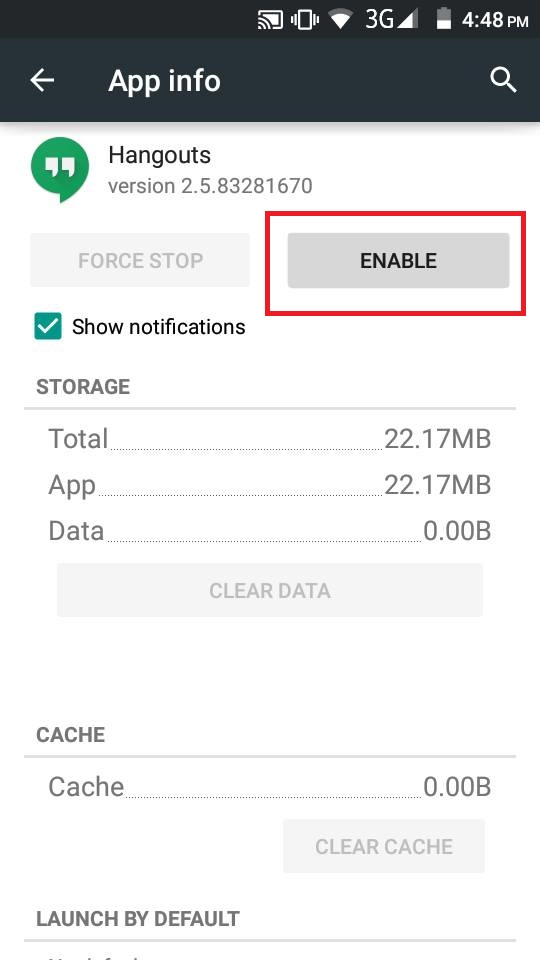
Congratulations! You have successfully removed the pre-installed apps from your Android Phone. If you want to enable the hidden app again.
Read more:How to Delete an Instagram Account Permanently From Android, iPhone or Windows PC/Laptop
This method is 100% working and safe. But, I would personally suggest you delete system apps only. Don’t remove any Android-related apps from your Android device. So, was this trick helpful? If you face any problem regarding uninstalling pre-installed apps from your Android. Then, make a comment below and don’t forget to share this article with your friends.
This post was last modified on December 31, 2021 17:48
Discover how much cost for YouTube TV has to offer in terms of features, channel…
Learn how to change your background on a Chromebook. We have described a simple guide…
Learn which simple methods there are to open Terminal on Mac from Spotlight Search to…
Learn to add Safari page to home screen on your iPhone or iPad with this…
Learn how to hide Steam activity for privacy while you game. We will go over…
Learn how to turn off PS5 controller with these easy-to-follow methods, which include the Control…
This website uses cookies.
View Comments
How can i clear the contents inside the Pre installed apps from my phone?
Tap on Clear Cache!