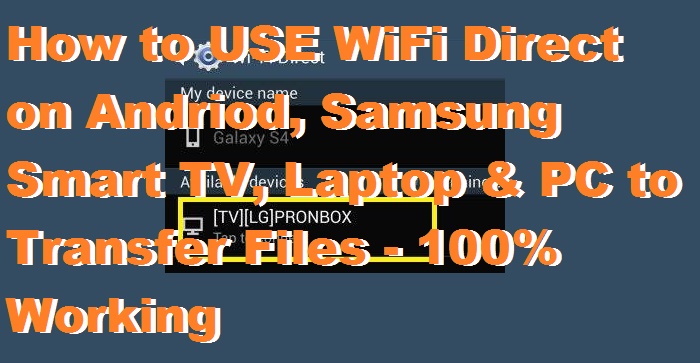
Hello friends, Today I will tell you a trick to use WiFi direct on Samsung Smart TV, Android, PC/Laptops and all other devices. You can access WiFi direct on any device and transfer files. I have shared all the methods to use WiFi direct.
WiFi direct is an inbuilt technique which is used to transfer files from one phone to another (especially on Samsung smartphones). It lets you transfer Videos, Images, and Other Files. This feature is generally available on Samsung phones but you can also you on other devices. It also lets you communicate to other devices at WiFi speed. Apart from sending files, you can also send messages.
Read more: Transfer Data from PC to iPhone Without using iTunes – Use Wifi
WiFi direct let the user transfer files from any device to any other device. The best part of WiFi direct is to access your files on TV or PC. This feature is very easy to access on Samsung devices. Samsung devices have inbuilt feature to connect WiFi direct. But for other connection you need to download other software and sometimes hardware are also needed. We have shared all possible and easy way to connect WiFi direct.
You can use WiFi direct to transfer files from android device to any other Android device, Pc or Smart TV. There are several methods to do this. I will share all the methods.
In this method, You can use WiFi direct to transfer files. Yes! you heard it right. You can also use WiFi direct to transfer files.From the home screen swipe the down the notification bar. Here you will see the ‘WiFi DIRECT ‘ option. Click on it, your phone will start searching for available devices. Once devices have been discovered you can start a connection with any of them.
Note: Make sure your PC is having the suitable hardware to access this feature. You can also add additional hardware to use WiFi direct on laptop & PC.
Read more: How to Download Apple Apps on Android – Get Apple App-store [Download Emulator]
These are the best possible methods to use WiFi direct on your devices. You can use all of the listed method above, which suits your need. If you face any problem regarding this trick. Then, comment below and share this article with your friends.
This post was last modified on December 31, 2021 17:47
Learn how to increase virtual memory in Windows 11, which in turn will improve system…
Learn how to remove OneDrive from File Explorer in Windows 11 with account unlinking, Group…
Learn how to find largest files on Windows 11 with File Explorer, Storage Settings, and…
Learn how to turn off OneDrive on Windows 11 by going to sync settings, unlinking…
Learn how to insert calendar in PowerPoint with templates, tables, or Excel. Present professional and…
Learn how to create templates in Outlook, which in turn will save you time, improve…
This website uses cookies.