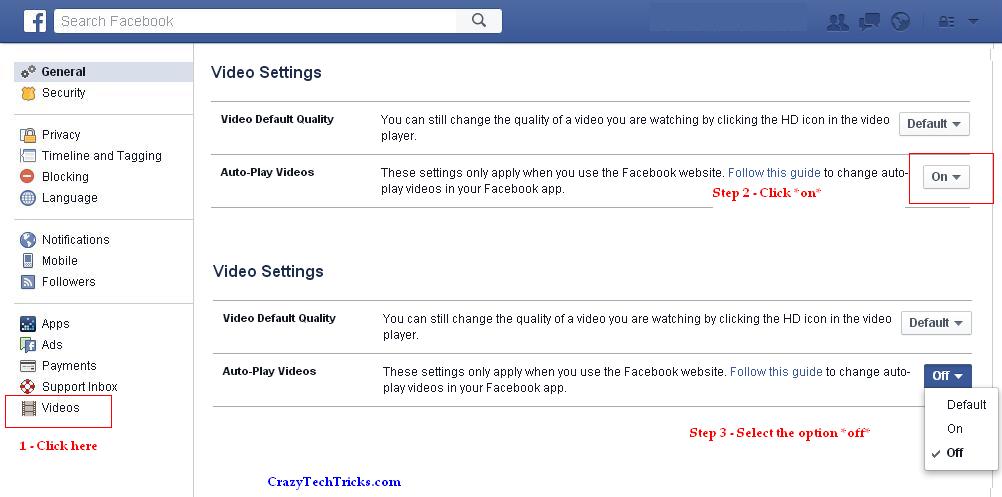
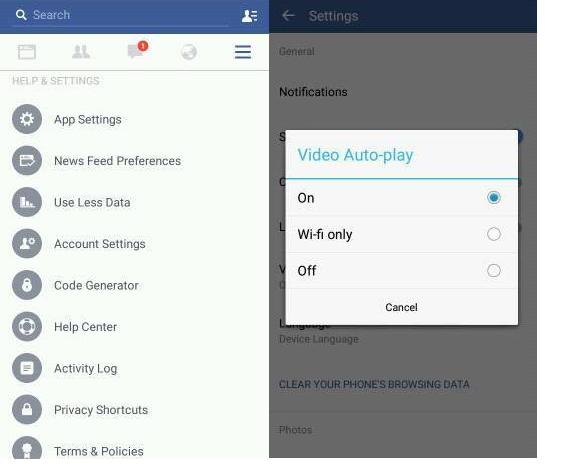
Are you struggling with Autoplay video on Facebook, You want to turn off, disable facebook autoplay video?. Don’t worry just read the article and disable Autoplay video on your Mobile phone and Desktop.
Recently you must have observed that video start playing automatically. It’s one of the new feature of facebook. But, majority of people are against this feature. This feature directly affect the data usage and make the system slow. Worst thing is that facebook has made this feature by default. So, all users of facebook are struggling with this auto play. But, don’t worry as you can disable auto play facebook video.
You can disable facebook autoplay video on your android, iOS and any other operating system.
You have done it. Now no video will be played without your click.
Users can also control the quality of videos on Facebook. It help in controlling the bandwidth of your data. Facebook has provided HD and SD quality.
If you want this Auto-Play features then leave it *on*. You can also choose the Quality of videos.
So, now you can easily turn-off this auto-play feature on your facebook account. You can also select the option of wifi. Well, it means that your video will be auto-play only when you are connected to wifi. It will reduce the data usage of your plan. But, it will affect your system speed. So, choice is yours. 🙂
Learn how to increase virtual memory in Windows 11, which in turn will improve system…
Learn how to remove OneDrive from File Explorer in Windows 11 with account unlinking, Group…
Learn how to find largest files on Windows 11 with File Explorer, Storage Settings, and…
Learn how to turn off OneDrive on Windows 11 by going to sync settings, unlinking…
Learn how to insert calendar in PowerPoint with templates, tables, or Excel. Present professional and…
Learn how to create templates in Outlook, which in turn will save you time, improve…
This website uses cookies.