Increase upload limit on WordPress blog and upload up to 100 MB file on your WordPress blog. In this tutorial i will tell you, how to increase maximum upload limit on your WordPress blog. I will share a trick which will help you to upload much bigger files on your WordPress blog.
WordPress default and free hosting plans allow users to upload a file of maximum 2 MB. However, several files are more than 2 MB. So, to upload these files on your WordPress blog. You need to follow this trick and get the maximum upload limit which 100 MB per file.
Note : If you are hosting with Hostgator or Bluehost. Then , you need to contact your host provider because Hostgator maximum limit is 64 MB and Bluehost maximum limit is 10 MB per file.
Increase maximum upload limit on your WordPress website, which is 100 MB per file. I will tell you two methods to increase your upload limit on WordPress blog.
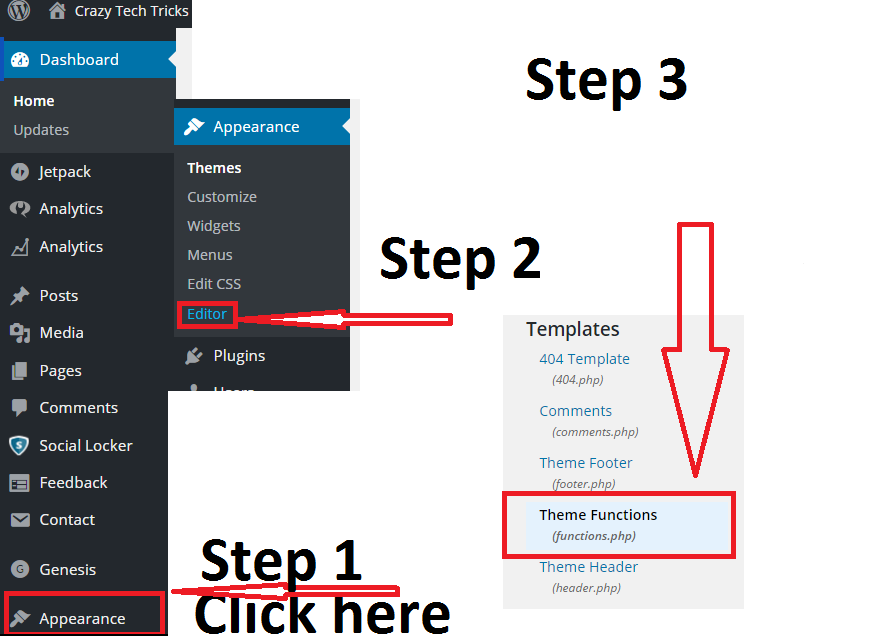
It is a coding method. In this method you need to do some changes with you WordPress theme. It will increase your upload limit to maximum limit.
@ini_set( ‘upload_max_size’ , ’64M’ );
@ini_set( ‘post_max_size’, ’64M’);
@ini_set( ‘max_execution_time’, ‘300’ );
This method is bit complicated as you need to visit to your website directory to increase upload limit on your WordPress website.
Note : If you are using shared hosting. Then, first you need to create PHP.INI to use this method.
pload_max_filesize = 30M
post_max_size = 30M
max_execution_time = 300
Note : These methods allow you to increase Upload limit from 30 MB to 64 MB. If your hosting provider is providing more than 64 Mb then just change it to maximum limit.
For example : Change 60M => 100M in the code listed above.
This is one the easiest method to increase your upload limit in WordPress blog. Well, if you face any problem then comment below and don’t forget to share this article.
This post was last modified on February 1, 2022 00:17
Learn how to increase virtual memory in Windows 11, which in turn will improve system…
Learn how to remove OneDrive from File Explorer in Windows 11 with account unlinking, Group…
Learn how to find largest files on Windows 11 with File Explorer, Storage Settings, and…
Learn how to turn off OneDrive on Windows 11 by going to sync settings, unlinking…
Learn how to insert calendar in PowerPoint with templates, tables, or Excel. Present professional and…
Learn how to create templates in Outlook, which in turn will save you time, improve…
This website uses cookies.