Learn how to cancel Paramount Plus subscription via the website, mobile apps, Roku, Amazon Fire TV, and other streaming devices, which is what this step-by-step guide is all about.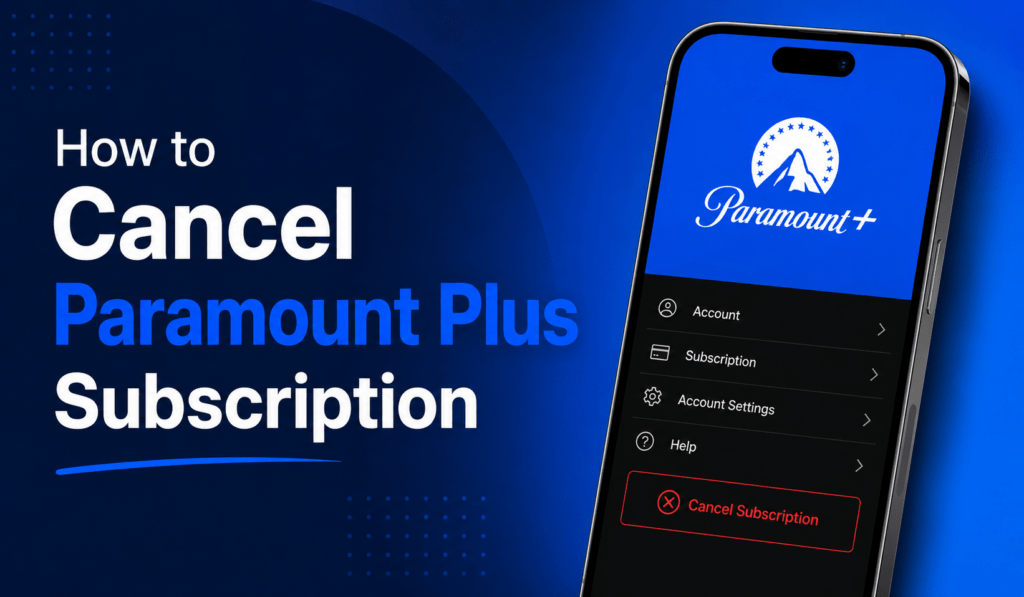
How to Cancel Paramount Plus Subscription
Many members ask how to cancel Paramount Plus subscription when they have outgrown the service. Whether you are looking to save money, switch to a different platform, or just take a break, we understand that at some point you may want to leave the service.
Read More: How to Cancel Twitch Prime Subscription or Free Trial 30 Days
Why You Might Want to Cancel Paramount Plus Subscription?
Many people cancel Paramount Plus subscriptions, maybe what they see is not what they were looking for in terms of content, or else they are into many streams, which in turn is making the price go up. Also, we see that some users just don’t use it that much anymore or are going out to try other options. Whatever your reason for wanting to leave Paramount Plus, it is an easy process and is straightforward once you know what you are doing.
Read More: How to Cancel Hulu Subscription from Laptop, Android or iOS
Steps to Cancel Paramount Plus Subscription
The process of cancel Paramount Plus subscription is based on how you signed up in the first place. You can sign up via the Paramount Plus site, Apple App Store, Google Play Store, or other streaming options.
Read More: How to Cancel Tinder Gold Subscription
1. Cancel Paramount Plus Subscription via the website
- Go to the Paramount Plus site and log in to your account.
- Go to your profile and choose “Account Settings.
- Under “Subscription,” you will see the option to cancel Paramount Plus subscription.
- Follow the screen Instructions for cancellation.
2. Cancel Paramount Plus Subscription via Mobile Apps
If you subscribed with your iPhone or Android device, you go to your app store to cancel your Paramount Plus Subscription.
- iPhone/iPad: Open Settings > go to your Apple ID section > go to Subscriptions > select Paramount Plus >Cancel Subscription.
- Android: Open Google Play Store > Menu > Subscriptions > choose Paramount Plus > cancel subscription.
3. Cancel Paramount Plus Subscription Via Streaming Devices
Some users use devices such as Roku, Amazon Fire TV, or Apple TV to sign up. To cancel subscription, follow device-specific instructions.
- Roku: Go to Roku channel settings > Manage Subscriptions > Cancel Subscription.
- Amazon Fire TV: Manage Your Subscriptions > Paramount Plus > Cancel Subscription.
Things to Keep in Mind
When you cancel your Paramount Plus subscription, your access will go up to the end of the present billing cycle. We recommend that you check for a confirmation email to avoid being charged in the next cycle. Also, once you cancel your Paramount Plus subscription, you may re-subscribe at a later date should you change your mind.
Conclusion
Knowing that you can cancel your Paramount Plus subscription is a valuable thing to know if you use the service. No matter if you signed up via the site, mobile apps, or a streaming device, the process is easy if you do the right things at the right time. Also, by learning how to do it, you can better manage your access to other services, save money, and get only what you watch. Also, always go over the what-ifs with the system after you cancel Paramount Plus subscription to avoid any surprises and to have a smooth experience.
Leave a Reply