Learn how to delete stickers on Snapchat account in an easy way. We will guide you through the basic steps of how to remove both standard and custom stickers for professionals post. We will also tell you about the common issues while trying to delete stickers on Snapchat.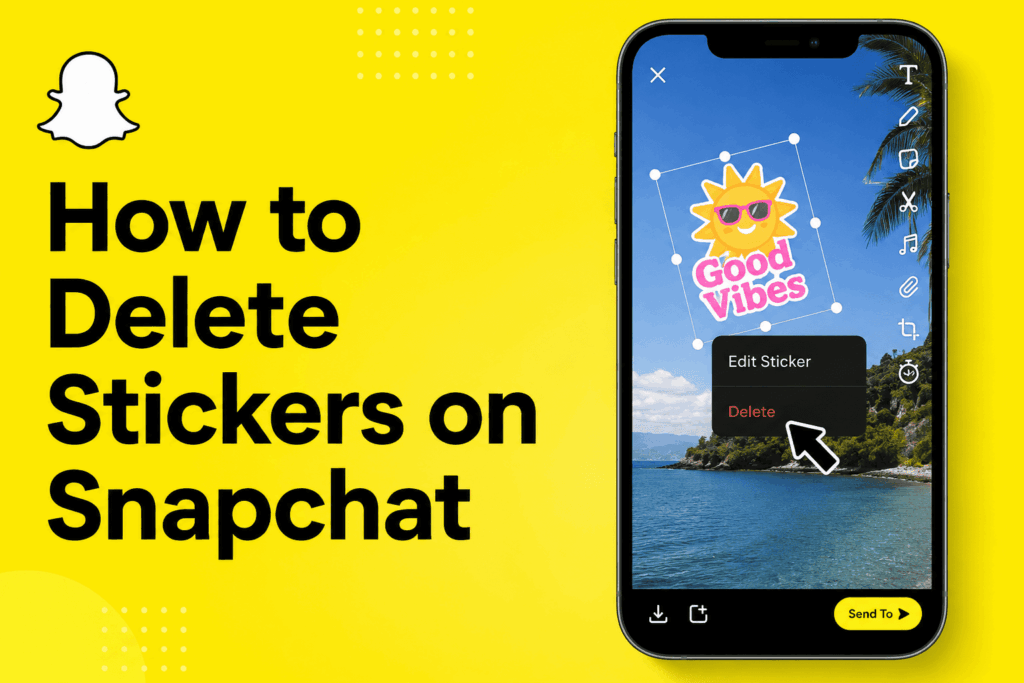
How to Delete Stickers on Snapchat
Snapchat stickers add a fun and creative touch to snaps, but some users may also wish to remove them for a cleaner look. Removing stickers on Snapchat is a very easy process that only takes a few seconds.
Read More: How to Do a Snapchat Password Reset With Username
What Are Snapchat Stickers?
Snapchat includes a variety of fun elements that you can add to your photos and videos. This includes emojis, Bitmojis, GIFs, location-based stickers, and custom stickers. People use these to make their snaps more entertaining and engaging. At the same time, though, there are times when users will Remove Stickers from Snapchat because the sticker doesn’t fit the image or is covering up something important.
Many times, what we see are people using Snapchat, which they use to look for methods to get rid of Stickers in an effort to make their stories more presentable before sharing with friends.
Read More: Top 5 Addictive Snapchat Games You NEED to Try
Why People Delete Stickers on Snapchat
Here are some of the reasons that cause users to delete stickers on Snapchat:
- A sticker was added by mistake.
- The snap looks overcrowded.
- The sticker is covering some of the photo.
- Users prefer a minimal design.
- The present sticker is out of tune with the snap.
- No matter what, on Snapchat, you can remove stickers from a snap without deleting the whole thing.
Read More: What Does Time Sensitive Mean on Snapchat
Steps to Delete Stickers on Snapchat
If you would like to delete Stickers on Snapchat, follow these easy steps:
1. Open Snapchat
Open the Snapchat app on your phone. Take a new photo or video, or pick one from your story.
2. Select the Sticker
Find the one sticker you wish to remove. Carefully tap and hold the sticker. This is the first step in Deleting Stickers on Snapchat.
3. Drag the sticker to the Trash bin
After which, a trash can icon appears at the bottom of the screen. Drag the sticker into the trash can and let go. The sticker will go away right away.
This is the quickest way to delete stickers on Snapchat, which leaves the rest of the snap the same.
4. Continue Editing
Once you delete a sticker on Snapchat, go ahead and edit your snap some more. Add in filters, text, drawings, or even throw on some new stickers before you send it to your friends.
How to Delete Custom Stickers on Snapchat
Snapchat also has a feature that allows users to make their own stickers out of pictures. Sometimes, users may wish to get rid of these saved stickers. To Remove Custom Stickers on Snapchat, follow these steps:
- Open Snapchat.
- Go to the sticker section.
- Click on the scissors icon to open custom stickers.
- Press and hold the custom sticker.
- Select the delete option.
This which in turn, helps users with their sticker collection.
Tips for Managing Snapchat Stickers
To improve how you manage and get rid of Stickers on Snapchat, note these tips:
- Steer clear of putting too many stickers in one snap.
- Select stickers that fit the theme of the image.
- Preview snaps before sending them.
- Remove extraneous stickers for a better-looking design.
- Organize custom stickers regularly.
These are some easy tips to improve your Snapchat experience.
Common Issues While Trying to Delete Stickers on Snapchat
Sometimes when using the Delete Sticker feature on Snapchat, some users report issues, which we have detailed below.
Sticker is Not Moving
Open the Snapchat app again and try this time. App glitches may also affect sticker movement.
Trash Icon Does Not Appear
Press and hold the sticker to activate. The trash icon appears at once.
Snapchat Freezes
Update your Snapchat app to the latest version, available in your app store.
Conclusion
Knowing how to delete Stickers on Snapchat is great for keeping your stories clean and professional. It’s also very easy to do, which in turn allows you to easily edit your photos and videos.
Leave a Reply