Learn how to insert calendar in PowerPoint with templates, tables, or Excel. Present professional and organized slides which display schedules, timelines, and key dates.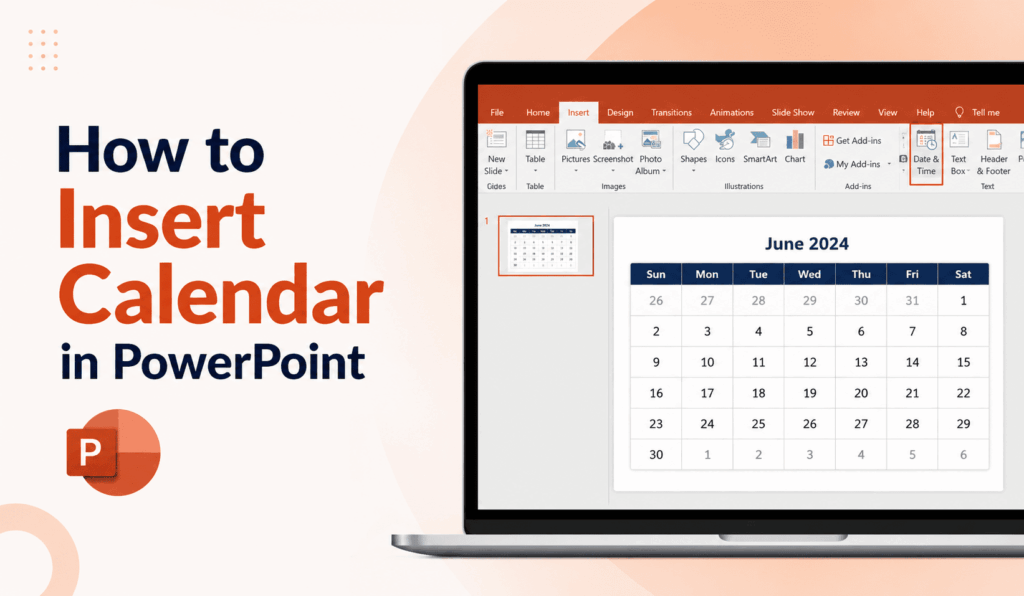
How to Insert Calendar in PowerPoint
Knowing which PowerPoint feature to use to add a calendar to your presentation is a great asset as you create structured, professional-looking slides. As you wish to showcase project timelines, event schedules, academic plans, or business meeting info, a calendar slide is the way to go. Also, PowerPoint offers a variety of calendar design options you can choose from, and you can tailor them to best fit your needs.
Read More: How to Check PowerPoint Version History
Why Insert Calendar in PowerPoint?
Many professionals use the Calendar feature in PowerPoint, which is a great tool for presenting important dates and deadlines. A calendar makes a presentation more engaging and easier to understand. Also instead of putting dates out there in text form a calendar format allows audiences to at a glance see in and out of which events and milestones.
Using a calendar in PowerPoint is a great tool for project managers, presenters, educators, marketing professionals, event organizers, and business leaders, as you can use to put forth your timelines better.
Read More: How to Merge PowerPoint Presentations on Windows & Mac
Method 1: Insert Calendar in PowerPoint Using Templates
In PowerPoint, you can add a calendar via the very easy template option. Also, Microsoft PowerPoint has a great variety of calendar templates that you can use and customize for any purpose.
To Use this Method:
- Open PowerPoint.
- Click File and select New.
- In the template search bar, type “Calendar.
- Select a calendar which fits your needs.
- Adjust colors, fonts, and dates to your taste.
This approach is time-saving and also produces pro-quality calendar slides.
Read More: How to Change Slide Size in PowerPoint 2016, 2014, 2010 or 2007
Method 2: Insert Calendar in PowerPoint Using Tables
Another option is to create your own calendar in PowerPoint using tables. This which gives you full design and layout control.
Steps include:
- Open a blank slide.
- Select the Insert tab.
- Go to the Table and create a grid structure.
- Add in the days of the week and their respective dates.
- Table to be formatted with color, border, and font.
This is for the users who prefer to design their own calendar.
Method 3: Insert Calendar in PowerPoint from Excel
Many of our users use the Insert Calendar feature, which is available from within Microsoft Excel. In Excel, you will find flexible calendar templates that you may copy into your presentation slides.
To do this:
- Create or open a calendar in Excel.
- Copy the calendar.
- Paste it into a PowerPoint slide.
- Modify as you see fit.
This is a useful option when you have to update calendar data frequently.
Tips for Designing a Calendar Slide
When you Insert Calendar in PowerPoint, pay attention to the design, which should be clean and simple.
Try These Tips:
- Use easy-to-read fonts and appropriate font sizes.
- Highlight important dates with contrasting colors.
- Maintain consistent formatting throughout the presentation.
- Add special event markers.
- Avoid putting too much info out there.
These issues are improved by these practices, which in turn improve the audience engagement.
Benefits of Insert Calendar in PowerPoint
The Decision to Insert Calendar in PowerPoint has many benefits:
- Improves presentation organization.
- Makes schedules easier to understand.
- Highlights deadlines and milestones effectively.
- Enhances visual appeal.
- Supports better communication with audiences.
A great way to improve presentation quality is through well-designed calendar slides.
Conclusion
Inserting a Calendar in PowerPoint is a skill that will add a professional and informative touch to your presentations. As for templates, tables, or Excel import, we have many options for you to do so efficiently. Also, by following best practices and customizing your calendar to fit your needs, you may put forth important dates and times in a clear, engaging, and very presentable format.
Leave a Reply