Learn how to check open ports on Windows, which in turn will help you to monitor network activity, see what connections are active, improve system security, and do a better job at troubleshooting connectivity issues.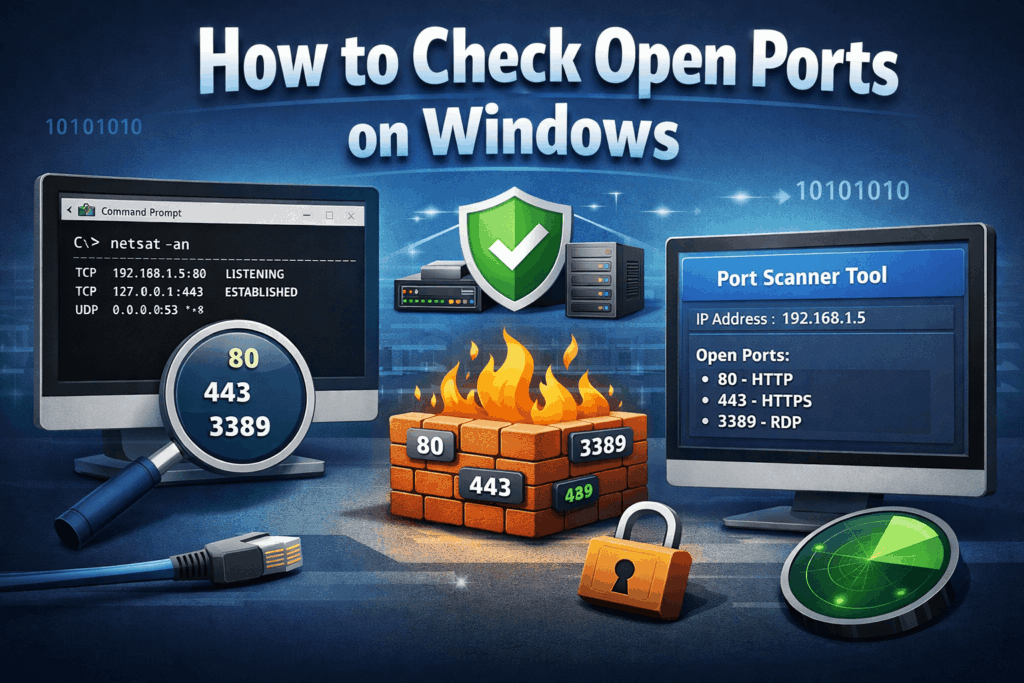
How to Check Open Ports on Windows?
Knowing that you can check open ports on Windows is a key skill for network security and the diagnosis of connectivity issues. When you do a port check on Windows, what you are doing is looking at which services and which apps are currently talking to external networks. This also helps you to detect unauthorized access and to make sure your system is running safely.
Read More: How To Fix No Internet Secured in Windows 11 Error
What Are Open Ports?
Before you go checking open ports in Windows, it is helpful to know what ports are. Ports are points of communication that applications use to send and receive data over a network. When you check open ports in Windows, what you’re doing is identifying which of these ports are active and are ready for incoming connections.
Read More: How to Fix 2nd Monitor Not Detected in Windows 11
Why You Should Check Open Ports on Windows?
There is a practice to do regularly on Windows, and that is to check open ports.
- To detect out of the ordinary network action that may be unsanctioned.
- To resolve network or application issues.
- To enhance system security
- To see which programs are using network resources.
When you are constantly checking open ports in Windows, you see better what is going on in your system, and you reduce security risks.
Read More: How to Fix Alt Tab Not Working in Windows 11
Method 1: Using Command Prompt
One of the simple ways to see open ports on Windows is in Command Prompt.
Steps:
- Press Windows + R, type cmd, and press Enter.
- In the Command Prompt window, type:
netstat -ano
- Press Enter.
This command reports all present connections and listening ports. When you check open ports on Windows with this method, note that:
- Local Address: Displays port numbers.
- State: Ports that are LISTENING or ESTABLISHED.
- PID: Identifies the process for the port.
In order to match the PID to a program, open Task Manager and go to the Details tab.
Read More: How to Clear Cache on Windows 11
Method 2: Using PowerShell
Another method that works well is to use PowerShell for checking open ports on Windows.
Steps:
- Open PowerShell.
- Type the following command:
Get-NetTCPConnection
To filter only listening ports:
Get-NetTCPConnection -State Listen
When you check open ports on Windows with PowerShell, you get more in-depth, custom output, which is great for advanced users.
Method 3: Using Resource Monitor
If you like visual displays of info, Resource Monitor is a great tool for checking open ports in Windows.
Steps:
- In the Windows search bar, Search For Resource Monitor.
- Open it and go to the Network tab.
- Expand the Listening Ports section.
This approach removes the need for command-line tools to check open ports on Windows.
Method 4: Using Third-Party Tools
Also, you can check open ports on Windows with third-party apps. Tools like TCPView, which present a real-time view of network connections and open ports, are at your disposal. These tools are handy if you need to check open ports often and prefer a visual interface.
How to Close Unwanted Ports
After you perform a port check on Windows, you may identify some ports that should not be. To close them:
- Open Windows Defender Firewall
- Go to Advanced Settings
- Create rules to drop certain ports, which also include inbound and outbound.
Regularly shutting down unused ports after you have checked which ones are open in Windows improves system security.
Conclusion
Learning which ports are open on Windows is a fundamental skill for new and experienced users alike. You may use Command Prompt, PowerShell, Resource Monitor, or third-party tools, whichever you prefer; each of these methods is a tool in your belt for in-depth network analysis. By regularly check open ports on Windows, you improve security, speed issue resolution, and see to it that your system is running at peak performance.
Leave a Reply