Learn how to make a moving sticker on iPhone, which you can make with Live Photos, GIFs, and third-party apps. This step-by-step guide will walk you through.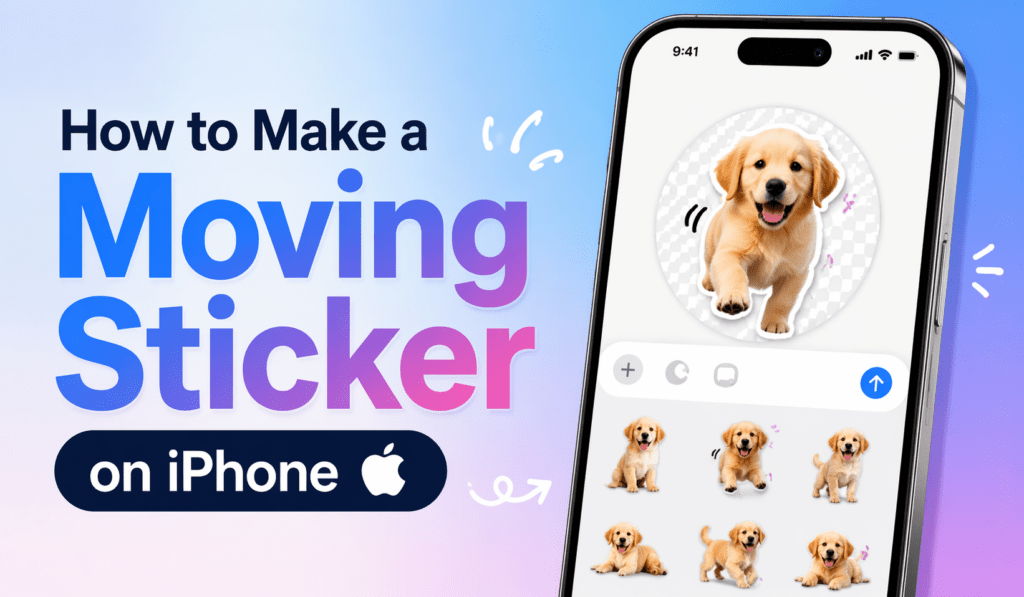
How to Make a Moving Sticker on iPhone
Creating animated stickers for iPhone is a fun way to bring your messages and social media posts to life. If you wish to make a moving sticker on iPhone you do not need advanced skills, just the right steps and a bit of creativity.
Read More: How to Sign Out of Gmail on iPhone
What is a Moving Sticker?
Before you make a moving sticker on iPhone, note what it is. A moving sticker is a short animated picture that we usually get from a Live Photo, video, or GIF. People into design and social media use to make a moving stickers on iPhone, which they put in their chats to add motion and personality.
Read More: How to Use Grayscale on iPhone
Use Live Photos to Make a Moving Sticker on iPhone
One way to make a moving sticker on iPhone is to use Live Photos. Open the Camera app, enable Live Photo, then capture a short interval of action. That’s the first step to make a moving sticker on iPhone.
After you take the photo, go to the Photos app, which has your Live Photo in it. Swipe up to apply effects like Loop or Bounce. These options are what you need to turn your image into a moving sticker right from your iPhone without the use of extra tools.
Read More: How to Find My Network on iPhone
Convert Live Photos into GIFs
To make a moving sticker on iPhone, which is also a Live Photo turned into a GIF, is a great option for you. GIFs are very widespread and easy to share. You may use the in-app effects or third-party apps to transform your Live Photo into a GIF. This also includes the step of taking your Live Photo and turning it into a smooth and continuous playing moving sticker.
Read More: How to Create your Own Stickers on WhatsApp on Android and iPhone
Use Apps to Make a Moving Sticker on iPhone
Another method, which is very powerful for creating great-looking stickers on iPhone, is via the use of sticker-making apps. These apps, which you download onto your phone, allow you to import video content, edit the background, and remove the subject from the video. In doing so, you can create a professional looking which also moves.
You also include text, emojis, and visual effects in it. Also, our users report that these features make the process of creating a moving sticker on iPhone a more fun experience, which also allows you to put your own style in it.
Remove Background for Better Stickers
When you make a moving sticker on iPhone, which you do by removing the background, you see better results. In newer iPhones, you can press and hold on a subject, which lifts it from the image. This is a simple technique that removes the need for complex editing tools when making a moving sticker on iPhone.
Export and Share Your Sticker
Once you make a moving sticker on iPhone, what you do is export it. Most apps that make stickers allow you to save your creation as a GIF or sticker file. Then you are able to share it with any messaging app. Thus, here is the full process to complete making a moving sticker on iPhone.
Tips to Make a Moving Sticker on iPhone Look Better
When you create a dynamic sticker for iPhone, keep your clips few and to the point. Good lighting and simple backgrounds will greatly improve it. Also, play with different effects to make your iPhone stickers more engaging and fun.
Conclusion
Capture the motion, edit it out, and export the final product. With practice, what you will see is that you can create a very unique and attention-getting moving sticker on an iPhone. Today is the time to start playing around with it and enjoy the process as you create your own iPhone moving stickers.
Leave a Reply