Learn to change date format in Windows 11 with easy step-by-step instructions. Also, we will cover how to customize short and long date formats to suit your preference.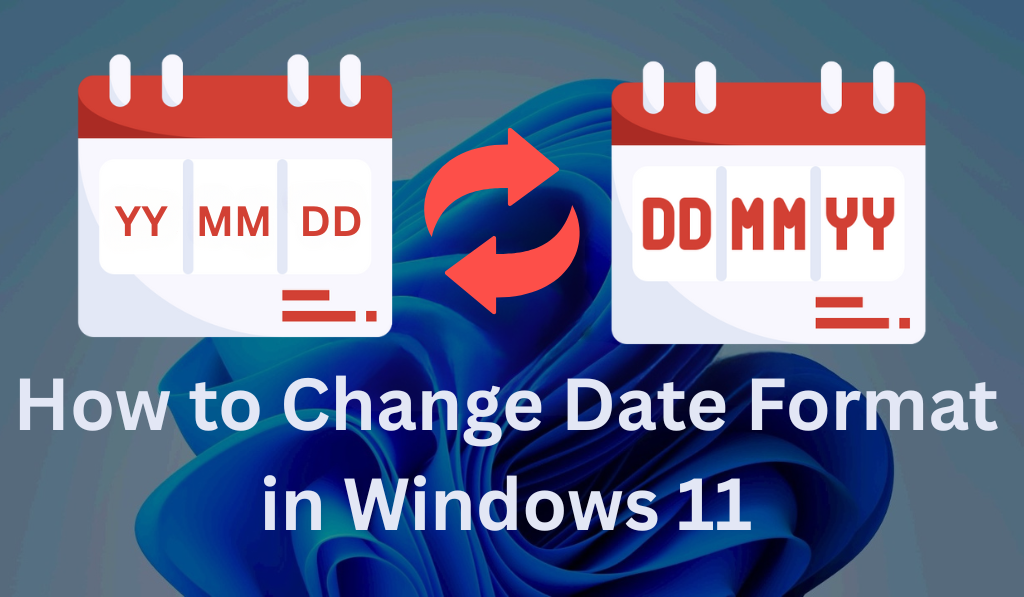
How to Change Date Format in Windows 11
In the present age of digital everything, we turn to our operating systems to help us out in the organization of our lives and the management of time. Windows 11, which is the latest version of Microsoft’s popular OS, provides many customization options that also include the option to change the date format. Whether you can set the date to reflect your region’s preference or that you just prefer a different style, change date format in Windows 11 is a simple process.
Read More: How to Fix Driver Power State Failure in Windows 11
Why Change the Date Format?
In Windows 11, by default, the date format may not be what you prefer. For example, the U.S. goes with the MM/DD/YYYY format, which is also used in some parts of Asia, but many European countries use the DD/MM/YYYY format. Also, some users may prefer the compact YYYY-MM-DD style, which is great for international or business use.
Read More: How to Change Keyboard Layout in Windows 11
Steps to Change Date Format in Windows 11
There are 5 Easy Steps to Change Date Format in Windows 11. Here are as following:
Step 1: Open the Settings app
Firstly, to change date format in Windows 11, open the Settings app on your Windows 11 device. To do this:
- Click the Start menu or press the Windows key.
- In the search bar, enter Settings and choose the Settings app from the results.
Also, you can use Windows + I to open the Settings app directly.
Read More: How to Change Cursor on Windows 11
Step 2: Go to Time & Language Settings
Once in the Settings window:
- In the left sidebar, click on Time Language.
- Then go to Language Region in the Time Language section.
This part of the interface allows you to set your language and regional options, which include date, time, and number format.
Step 3: Access Date Format Settings
In the Language and Region setting, under the Regional Format section, you will find an option that says Change data formats. This is the area in which you may change how Windows will display the date.
- Click on Change data formats.
- You will be presented with the options for changing how dates, times, and numbers display on your device.
Step 4: Change the Date Format
As of now, in the date format settings, you will see that we have a few options for customizing how Windows 11 displays dates:
- Short Date Format: This date format is the most popular. They usually show up in the taskbar, in the system tray, and within other applications.
For example:MM/DD/YYYY (Month/Day/Year)
DD/MM/YYYY (Day/Month/Year)
YYYY-MM-DD (Year-Month-Day) - Long Date Format: This structure uses the full name of the day and also the full name of the month.
For example:Friday, October 30, 2025
Monday, 1st January 2025 - To change date format in Windows 11, just click on the drop-down menu for Short Date or Long Date and choose what you prefer.
Step 5: Apply the Changes
After you choose what format you like, the changes will take effect right away. You see the new date format in the taskbar, calendar, and in many other areas of your system.
Other Considerations
If you work with multiple languages and time zones, this is also an option to change your region settings in Windows 11. This action may, in turn, see your date formats put in agreement with the region you are in or the region you are working with.
Here is how you do it:
- In the Language and Region section, you may choose a particular country or region from the drop-down list.
- Changing the region may also display dates, times, currencies, and other information differently.
Also, if you use a different date format often, we suggest that you save your changes as your default. That way, when you change regions or language, the date format will still be what you prefer.
Conclusion
Change date format in Windows 11 is a simple and effective way to put your OS at your service. As it goes that you prefer MM/DD/YYYY, DD/MM/YYYY, YYYY-MM-DD, or any other option, Windows 11 has you covered in terms of date format customization. We walk you through easy steps in this guide, which, once followed, will have you back and forth between date formats in no time.
Leave a Reply