Here is how to easily sign out of Gmail on iPhone, which can be done with 2 easy methods. Also, here is a short guide to help you secure your personal information.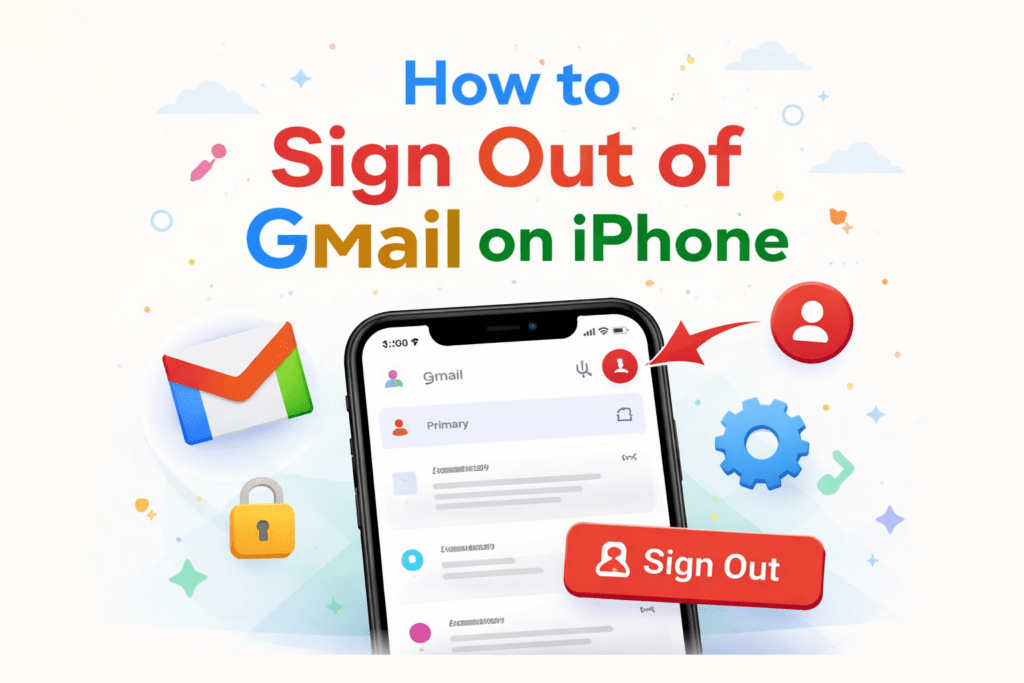
How to Sign Out of Gmail on iPhone
If you’re looking for a simple solution to sign out of Gmail on iPhone, you aren’t alone. Many users do this to go private, to switch accounts, or to fix up sync issues. We put together this info to help you out with the sign-out process of Gmail on iPhone, which in turn will better secure your personal email and organize your device.
Read More: Difference Between Proton Mail vs Gmail
Why You May Need to Sign Out of Gmail on iPhone
Some reasons people sign out of Gmail on iPhone. For instance, if you are using a shared device that is not your own, by signing out of Gmail on iPhone, you are protecting your personal data. Also, if you are switching accounts, you will have to sign out of Gmail on iPhone first before adding a new one.
Another issue that causes people to sign out of Gmail on iPhone is when email apps stop syncing properly, which, in turn, is fixed by signing out of Gmail on iPhone and signing back in.
Read More: Understanding the Queued Meaning in Gmail
Method 1: Sign Out of Gmail on iPhone Using the Gmail App
The most used way to sign out of Gmail on iPhone is via the Gmail app, which is what we will use. Go through these steps:
- Open your Gmail on your iPhone.
- Click on your profile picture at the top right.
- Choose “Manage accounts on this device.
- Select the account you wish to remove.
- Click on Remove account.
This method works to remove the account that is used to sign out of Gmail on iPhone. Once the process is complete, your email will no longer appear in the app.
Read More: How to Unarchive Gmail (Desktop & Mobile Best 3 Methods Explained)
Method 2: Sign Out of Gmail on iPhone Via Settings
Another way to log out of Gmail on iPhone is through the settings app. This method will remove your account from the entire device.
- Open up the Settings app.
- Scroll down the page and tap “Mail.
- Click “Accounts.
- Select your Gmail account.
- Click the “Delete Account” button.
When you use this option to sign out of Gmail on iPhone, all of your data, which includes email, contact, and calendar info, will be deleted from your device.
Read More: How to Backup Text Message in Gmail
Alternative Option: Disable Gmail Instead of Signing Out
If you prefer not to fully sign out of your Gmail on iPhone, you can instead turn it off. This is useful when you do not wish to receive emails at the moment but still keep your account active.
- Go to Settings
- Tap “Mail”
- Tap “Accounts”
- Select your Gmail account
- Toggle off “Mail”
While this isn’t a full solution for signing out of Gmail on iPhone, it does what is asked by preventing new emails from appearing on your device.
Important Things to Remember
Before you log out of Gmail on iPhone, here are some points to note. First, signing out doesn’t mean your account is deleted forever. It only takes the account off your device. Also, you are able to log back in at any time.
Second, upon signing out of Gmail on iPhone, any data related to that account that is stored locally will be deleted. This includes emails and synced contacts. Also, make sure you have your login info at hand before you sign out of Gmail on iPhone.
Conclusion
Learning to sign out of Gmail on iPhone is a must for privacy and account management. You may go through the Gmail app or your iPhone settings to remove the account; either way, the sign-out process is very simple and effective. By the steps we’ve provided, you can easily sign out of Gmail on iPhone at any time and in this way protect your personal info.
Leave a Reply