Learn how to turn off Flash Notification on iPhone from this easy guide. We will take you through the steps to turn off LED flash alerts for calls, texts, and app notifications, which in turn will improve your iPhone experience and also reduce distractions.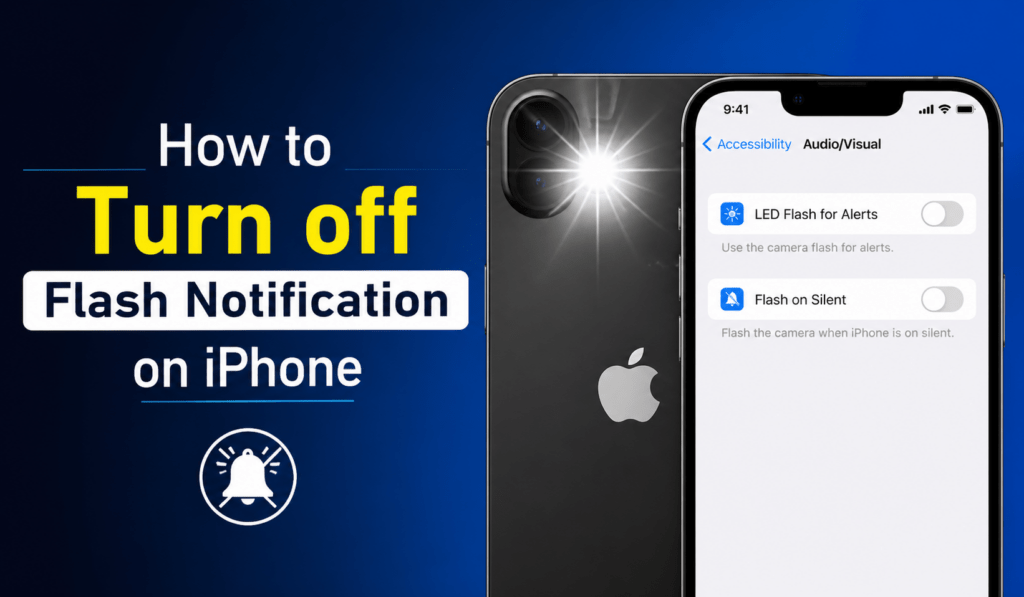
How to Turn off Flash Notification on iPhone
If you are seeing your iPhone’s flash every time you get a notification or message, you are using the LED flash alerts feature. Although this is useful for some users, many people will at some point want to turn off Flash notification on iPhone, which can be very distracting or unnecessary.
Read More: How to Set up Emergency Bypass on iPhone For Calls, Message and FaceTime
What is Flash Notification on iPhone?
Before you turn off flash notification on iPhone, it is noted that certain features use your phone’s flash to blink at the time of receiving certain notifications, like calls, texts, or app alerts. It is mostly used as a tool for users who depend on visual cues in place of sound.
Also, not all users require this feature at all times. That’s why we see many of them looking for how to turn off Flash notification on iPhone once they have turned it on.
Read More: How to Use Freeform on iPhone
Why You May Want to Turn Off Flash Notification on iPhone
There are a variety of reasons that cause people to turn off flash notifications on iPhones. The light flashes, which may be disruptive in very dark settings such as a bedroom or movie theater. Also, it may interrupt during meetings or social events, which isn’t a convenient time.
Another issue with flash notification on iPhone is battery health. While the impact may be minimal, over time, constant flash action does drain the battery. Also, for those who prefer a more discreet notification approach, turning this feature off is a good idea.
Read More: How to Make a Moving Sticker on iPhone
Steps to Turn Off Flash Notification on iPhone
If you wish to turn off flash notifications on iPhone, do this:
- Open Settings on your iPhone.
- Scroll down the page and tap on Accessibility.
- In the Accessibility section, choose Audio/Visual.
- Find the Option Labelled LED Flash for Alerts.
- Toggle the switch off to turn off flash notification on iPhone
Once you finish those steps, your phone will stop flashing the notification.
Read More: How to Use Grayscale on iPhone
Turn Off Flash in Silent Mode
Sometimes it happens that users ignore the fact that we have a separate setting for silent mode. If your iPhone still flashes at intervals, you may want to adjust this also.
To get rid of flash notifications on iPhone, go to the Flash on Silent option in the same menu. Turn that off to make sure your phone does not blink in silent mode.
Read More: How to Find My Network on iPhone
Things to Keep in Mind
When you turn off Flash notifications on iPhone, you will no longer see the alerts. Also, check that your sound and vibration settings are proper so as not to miss out on important notifications.
Also, be aware that you can at any time re-enable this feature by going through the same process if your needs change in the future.
Conclusion
Learning to turn off flash notification on iPhone is a quick process that only takes a few seconds. If what you wish to do is reduce the ads that bring in the notifications, save some battery life, or do so just out of general preference to not draw attention to your phone in public, disabling this feature will improve your experience.
By performing the steps above, you are able to turn off flash notifications on iPhone, which in turn will present you with a more tranquil and controlled alert experience.
Leave a Reply