In this, We Learn How to Fix No Internet Secured in Windows 11 error with easy steps, Like reboot your router, resetting network settings, updating drivers, changing DNS, and getting your connection back fast.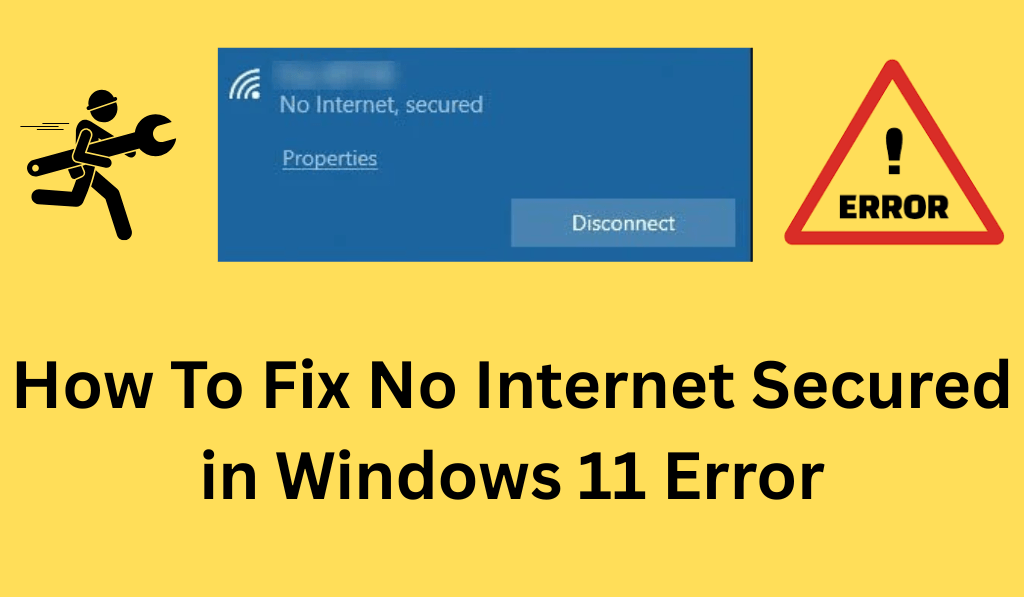
How To Fix No Internet Secured in Windows 11 Error
The no internet Secured in Windows 11 Error is a very common network issue which has your computer report as not being able to access the internet even when it is connected to what appears to be a Wi-Fi network. When you see no internet secured in Windows 11, it is a telltale sign that your device is connected to the router but having issues with the internet.
Read More: How to Check Wifi Signal Strength
1. Reboot Your Router and PC
The first and easiest Fix for no internet secured in Windows 11 is to reboot your device. Go ahead and power off your router, wait 2-3 minutes, then power it back on. After that, do a full restart of your PC. We see that many times a boot will do the trick, which in turn refreshes the network connection.
Read More: How to Fix Slow WiFi at Home and office
2. Forget and Reconnect to WiFi
If Reboot doesn’t fix the no internet Secured in Windows 11 error, try reconnecting to your Wi-Fi.
- Go to Settings.
- Tap Network and Internet.
- Choose Wi-Fi.
- Tap Manage known networks.
- Select your network and press Forget.
Reconnect by signing in again. This approach may clear out temporary issues that cause the no internet secured in Windows 11 message.
Read More: How to Create Windows 10 WiFi Hotspot on PC/Laptops
3. Run Network Troubleshooter
Windows 11 has a built-in troubleshooter for no internet, which reports that it has fixed the issue.
- Go to the Settings.
- Press System.
- Choose Troubleshoot.
- Select Other troubleshooters.
- Run Network and Internet settings.
The issue of no internet secured in Windows 11 will be what we look out for, and we will try to fix it.
Read More: How to Fix Alt Tab Not Working in Windows 11
4. Upgrade Network Drivers
Out-of-date and corrupted drivers are a large cause of internet issues in Windows 11. Easy driver updates can fix that problem.
- Click the Start button.
- In Device Manager.
- Expand Network adapters.
- Click your Wi-Fi adapter with the right click.
- Press Update driver.
Go to “Search for drivers automatically. After the update, try to reboot your PC back up and see if that has solved the no internet secured in Windows 11 issue.
Read More: Difference Between Hibernate vs Sleep in Windows 11
5. Reset Network Settings
If you still see the no internet secured in Windows 11, try resetting network settings.
- Go to Settings.
- Tap Network and Internet.
- In advanced network options.
- Click to reset Network.
This will do a reinstallation of network adapters and also remove saved networks. After the restart, connect to Wi-Fi and see if the no internet in Windows 11 issue is resolved.
6. Turn off VPN or Antivirus Temporarily
Sometimes, when you have certain third-party software like antivirus programs or VPN turned on, you may get the no internet issue in Windows 11. Try to disable them for a while and check your connection. If the Internet is back, it’s probably a setting issue within that program, or the program itself is the issue, which may be resolved by a reinstallation.
7. Modify DNS Settings
Wrong DNS settings may cause no internet secured in Windows 11. To fix this:
- Go to Network & Internet.
- Go to advanced network settings.
- Choose different network adapter options.
- Right-click Your Connection.
- Select Properties.
- Choose TCP/IPv4 for the network protocol.
- Click Properties.
Use the following DNS servers:
- Preferred: 8.8.8.8
- Alternate: 8.8.4.4
Save changes and reboot your PC. This is known to fix the no internet secured in Windows 11 error.
8. Check Windows for Updates
Sometimes issues of a system scale cause the no internet Secured in Windows 11 issue. Updating Windows may fix hidden network issues.
- Go to Settings.
- Press Windows Update.
- Check for updates.
Update your device and then restart it.
Conclusion
The no internet Secured in Windows 11 may be maddening, but for the most part is very easy to sort out. From a router restart to driver updates, resetting network settings, or changing DNS, we have solutions that will have you back online in no time. Go through each step methodically, and your connection should return to normal.
If still having issues with the Windows 11 update after you try all remedies, then your Internet Service Provider may be the issue. Contact them for help.
Leave a Reply