Learn how to install third-party apps on Roku TV with private channel codes and screen mirroring. We will go over safe methods, steps, and tips to get to non-certified channels and, in the process, also increase your streaming options.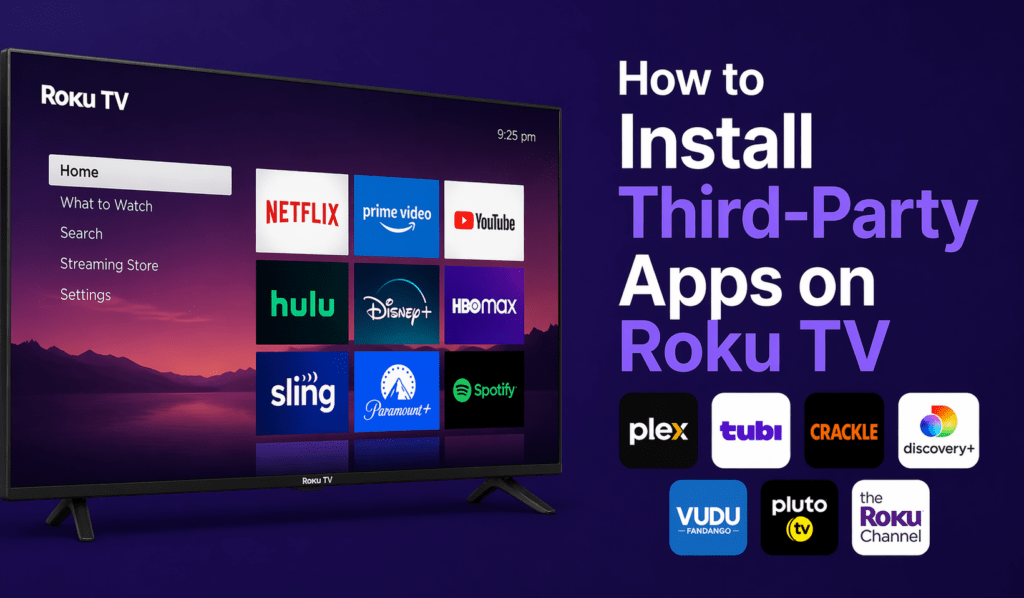
How to Install Third-Party Apps on Roku TV
If you are looking to install third-party apps on Roku TV, first get to know how the Roku platform works. Unlike with Android-based TVs, Roku has a controlled environment. Which means you do not have the freedom to download apps from unknown sources. But there are still safe and effective ways to get into that third-party app on Roku TV, which, in fact, are presented to you through features that come built.
Read More: How to Disconnect Roku TV From WiFi
What are Third-Party Apps on Roku TV?
Before you go ahead and install third-party apps on Roku TV, it is important to know what they are. Third-party apps, also known as private or non-certified channels, do not appear in the official Roku Channel Store. Developers create these apps for testing or very limited distribution. Although they may not be public, Roku does allow users to install third-party apps on Roku TV via special access codes.
Read More: How to Update Roku TV to Latest Version
Method 1: Use Private Channel Codes
Roku’s primary method of getting third-party apps is via private channel codes. This is what they provide as an official workaround.
Steps to Follow:
- Go to your Roku account page, which you do by opening a web browser.
- Sign in to your Roku account.
- Go to “Manage Account.
- Click on “Add Channel with a Code.
- Join the private channel as directed by the developer.
- Allow installation of third-party apps on Roku TV.
After completion of these steps, the channel will be added to your account.
Read More: How to Setup Parental Controls on Roku TV on PC/Laptop or Android/iPhone
Sync the Channel to Your Device
Once you install third-party apps on Roku TV via a code, the app may not show right away. You will have to manually update your device.
How to Update:
- Go to the settings on your Roku TV.
- Select System
- Click on System Update
- Choose “Check Now.”
This step makes sure that the new app is paired to your device, which you have installed from a third party on your Roku TV.
Read More: How to Sideload Peacock on Amazon Fire TV
Method 2: Screen Mirroring
Another way to install third-party apps on Roku TV is via screen mirroring. Although this doesn’t actually install the apps, it enables you to use your phone or computer apps right on your TV screen.
How It Works:
- In Roku settings, enable screen mirroring.
- Connect your device to the same Wi-Fi network.
- Mirror your device display to the TV.
This option is for when you are unable to install third-party apps on Roku TV but still wish to access certain content.
Important Safety Tips
When you install third-party apps on Roku TV, do so with care. These apps are not checked by the Roku team and may not meet security standards.
- Only use trusted channel codes
- Avoid unknown or suspicious sources
- Some apps may not work.
Here are tips to help you out in the installation of third party apps on Roku TV which in turn won’t put your data at risk or device performance at risk.
Limitations You Should Know
Even if you successfully install third-party apps on Roku TV.
- Non certified channels may be removed at any time.
- Some apps may not run properly.
- Roku is updating to remove some apps.
Due to these restrictions, what we see is installing third-party apps in Roku TV may not always be a permanent solution.
Conclusion
To that effect, while Roku does not support what you may term traditional app installs, you can still install third-party apps on Roku TV via private channel codes or screen mirroring. These methods put forth by us include a greater choice of content. By you which follow in due course and also are careful you will be able to install third party apps easily on your Roku TV and at the same time enjoy a wider range of content.
Leave a Reply